Can I Print from a USB at CVS? Here’s Exactly How It Works in 2026
 Feb, 13 2026
Ever stuck with a USB full of photos and no way to print them? You’re not alone. Thousands of people pull out their flash drives at CVS every week, hoping to get prints without fumbling with apps or email. The simple question - can I print from a USB at CVS? - has a straightforward answer: yes, you can. But there’s more to it than just plugging in and walking away.
How CVS Photo Printing Works with USB
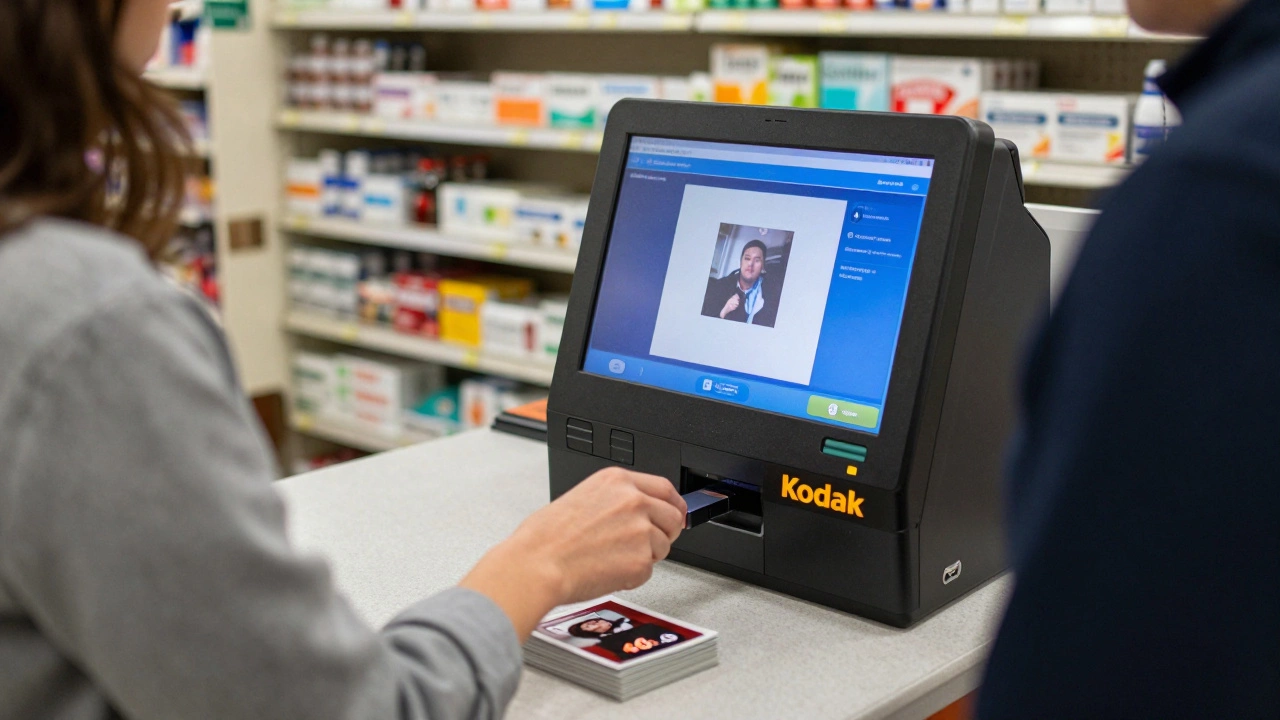
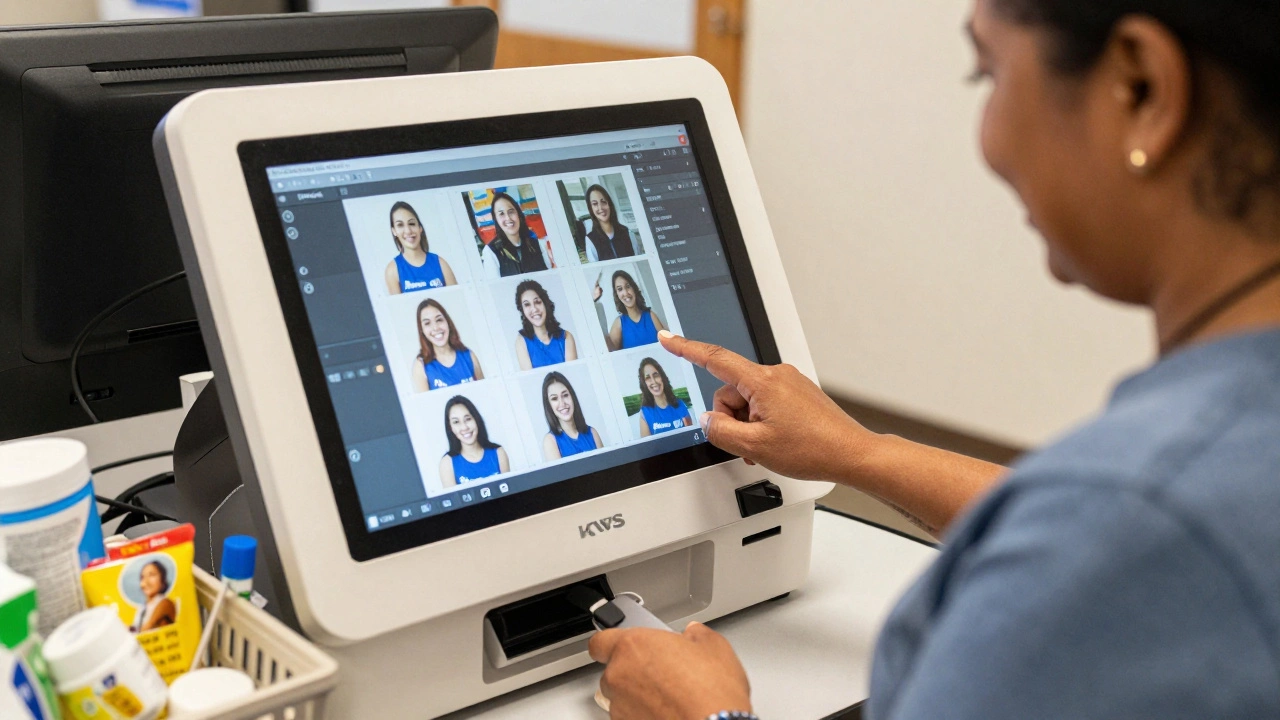
CVS uses KODAK Picture Kiosks in most of its stores. These are standalone touchscreen machines, usually near the pharmacy or photo counter. You can plug a USB flash drive directly into the side of the kiosk. The system reads the files, shows you thumbnails, and lets you pick which photos to print.
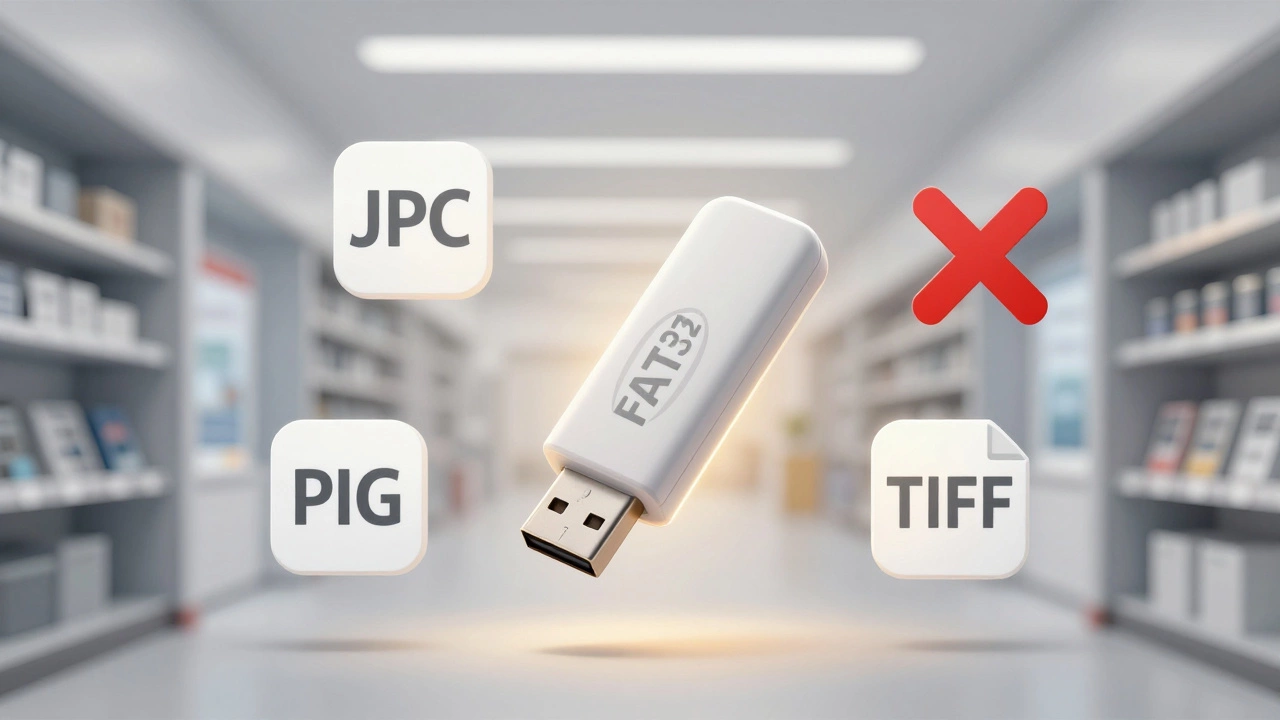
You don’t need an account. No login. No app download. Just plug in, select, pay, and go. The kiosk supports common formats: JPEG, PNG, and TIFF. If your photos are in RAW format (like .CR2 or .NEF), the machine won’t recognize them. Stick to JPEG for the best results.
Most CVS locations have these kiosks open from 7 a.m. to 10 p.m., seven days a week. The process takes under five minutes once you’ve picked your photos. You can even crop, rotate, or apply red-eye removal right on the screen.
What USB Drives Work at CVS?
Not every flash drive will work. The kiosks support USB 2.0 and USB 3.0 drives, but they have limits:
- Maximum drive size: 32 GB
- File system must be FAT32 (not NTFS or exFAT)
- Only the root folder is scanned - subfolders are ignored
- No encrypted or password-protected drives
If your drive is too big or formatted wrong, the kiosk will say "No files found" - even if you know you have photos on it. That’s usually because it’s formatted as NTFS. You can fix this by reformatting the drive to FAT32 on a computer. Just back up your files first - reformatting erases everything.
Print Options and Pricing
CVS offers standard print sizes:
- 4x6 - $0.39 each
- 5x7 - $1.99 each
- 8x10 - $3.99 each
- 11x14 - $7.99 each
You can also order photo books, canvases, or greeting cards from the same kiosk, but those require more steps and take longer to process. For quick prints, stick with the standard sizes.
There’s no charge for using the kiosk itself. You only pay for the prints you select. You can pay with cash, credit, debit, or Apple Pay. No minimum order. Print one photo or 100 - same per-print price.
What Doesn’t Work
Some people assume CVS can print PDFs, Word docs, or spreadsheets. Nope. The kiosks are built for photos only. If you try to print a document, it won’t show up.
Also, don’t expect same-day pickup for large orders. If you order more than 50 prints, the kiosk may send the job to a central lab. That adds 1-2 hours to the wait time. For urgent prints, keep it under 20 photos.
And here’s a common mistake: people plug in phones via USB cables. CVS kiosks don’t read phones. You need a standalone USB drive. If you’re using your phone, transfer the photos to a flash drive first.
Pro Tips for a Smooth Experience
- Organize your photos before you go. Put them all in one folder on the root of the USB.
- Check file names. Avoid symbols like #, %, or & - they can crash the kiosk.
- Bring extra batteries. If your USB drive has a light, make sure it’s on.
- Test the drive on your computer first. Open the folder. Can you see the photos? If not, the kiosk won’t either.
- Print a test photo. If the colors look off, adjust brightness on the kiosk screen before printing the whole batch.
Many people forget that CVS also offers digital copies. After you print, you can pay $1.99 to get a download link for all the photos you selected. That’s handy if you want to email them or upload to social media later.
Alternatives If CVS Doesn’t Work
If your USB doesn’t work at CVS, or the store is out of service, here are three other options:
- Walgreens: Same system, same kiosks. Uses the same USB rules. Often has longer hours.
- Target: Uses Shutterfly kiosks. Supports larger drives (up to 128 GB) and exFAT format. Good if your drive is too big for CVS.
- Walmart: Lets you upload photos via app or website, then pick up in-store. Doesn’t accept USB drives directly.
For the fastest, simplest USB print job, CVS still wins. It’s widely available, cheap, and doesn’t require any setup.
Why This Matters in 2026
Even with smartphones and cloud storage, physical photos are still popular. Families still want to hang prints. Seniors prefer tangible copies. Students need prints for portfolios. CVS fills a real gap - no Wi-Fi needed, no account required, no waiting for shipping.
It’s one of the last places where you can walk in with a USB, get prints in minutes, and leave with something you can hold. That’s worth remembering.
Can I print from a USB at CVS without an account?
Yes, you don’t need an account, login, or app. Just plug your USB into the CVS photo kiosk, select your photos, pay at the screen, and pick them up. It’s completely anonymous and works with cash.
What file formats does CVS accept on USB?
CVS kiosks only accept JPEG (.jpg), PNG (.png), and TIFF (.tiff) files. RAW formats like .CR2, .NEF, or .ARW won’t work. Make sure your photos are saved as JPEGs before copying them to the USB.
Why won’t my USB work at CVS?
Most often, it’s because the USB is formatted as NTFS or exFAT. CVS kiosks only read FAT32. Also, if the drive is over 32 GB, or if your photos are in subfolders (not the root folder), the kiosk won’t find them. Try reformatting the drive to FAT32 on a computer.
Can I print PDFs or documents from a USB at CVS?
No. CVS photo kiosks are designed for printing photos only. They can’t read PDFs, Word files, Excel sheets, or any other document format. If you need to print documents, use a copy shop like Staples or FedEx Office.
How long does it take to print from a USB at CVS?
Once you’ve selected your photos, most orders print in under 10 minutes. Small orders (under 20 prints) are usually ready in 5 minutes. Larger orders (50+ prints) may take up to 2 hours because they’re sent to a lab. Plan ahead if you need them quickly.
If you’re planning to print photos from a USB, make sure your drive is FAT32, your files are JPEGs, and you’re not trying to print anything beyond photos. With those three checks, CVS will get you prints fast - no hassle, no app, no waiting.