Does iPhone Have a Photo Editing App? The Complete Guide to Built-in Tools and Best Alternatives
 Jun, 16 2026
iPhone Photo Editor Selector Tool
Your Recommended App
Based on your editing goals and budget
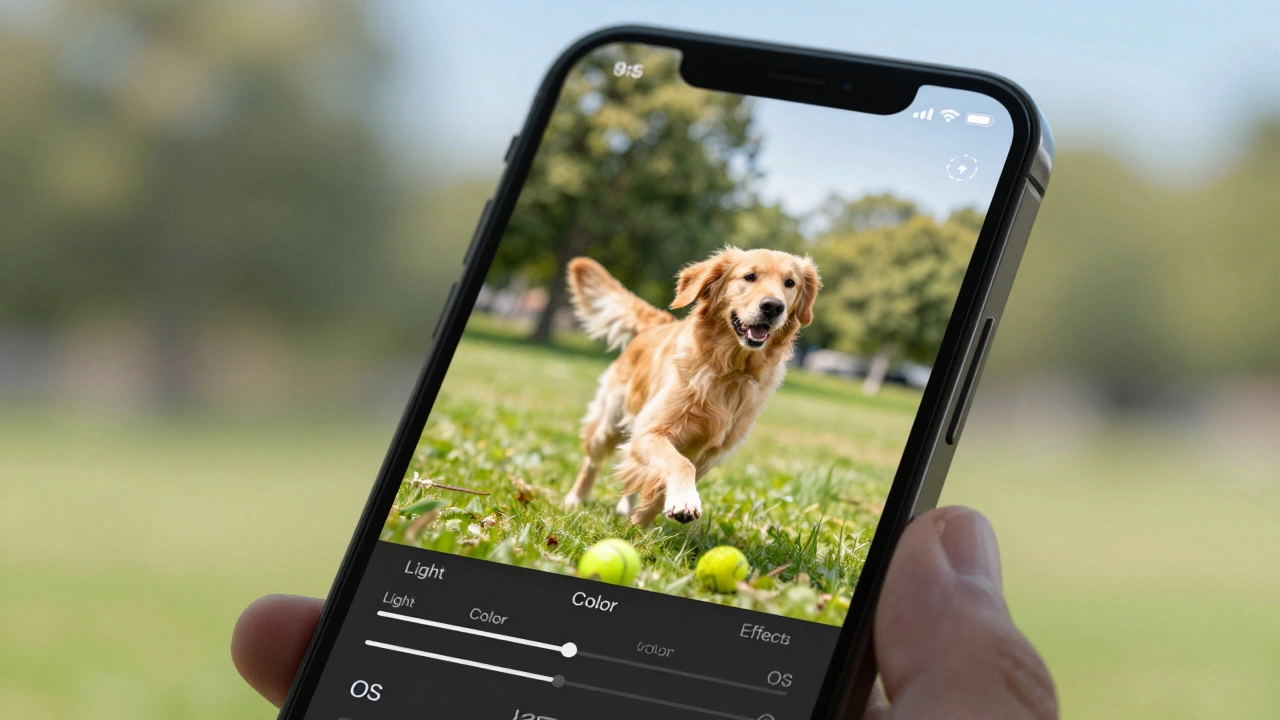
You just snapped the perfect shot of your dog chasing a ball, but the lighting is slightly off. You pull up your iPhone Apple's flagship smartphone series known for its integrated hardware and software ecosystem camera roll, expecting to find a dedicated "Edit" button that fixes everything instantly. Does it exist? Yes. But if you're looking for Photoshop-level control or trendy AI filters, the built-in solution might feel limited depending on what you need.
The short answer is yes, every iPhone comes with a powerful, free photo editing suite pre-installed. It’s called the Photos app The default application on iOS devices for storing, organizing, and editing images and videos. However, understanding exactly what this tool can-and cannot-do is the difference between spending five minutes fixing a sunset photo and wasting an hour trying to force it to do something it wasn't designed for.
The Built-In Solution: Mastering the Photos App Editor
Most users don't realize how much power sits right inside their pocket. The editor in the Photos app isn't just a quick brightness slider; it leverages the computational photography engine that took the picture in the first place. When you open any image in your library and tap "Edit" in the top right corner, you unlock a suite of tools that are surprisingly robust for everyday use.
The interface is divided into several tabs, each handling a specific aspect of the image:
- Auto: A one-tap fix that analyzes contrast, saturation, and white balance. It’s not magic, but it often gets you 80% of the way there.
- Crop & Rotate: Includes straightening lines and cropping to standard aspect ratios like 16:9 or square.
- Light: Controls exposure, contrast, highlights, shadows, brightness, and black point. This is where you rescue overexposed skies or dark corners.
- Color: Adjusts vibrance (which protects skin tones) versus saturation (which boosts all colors equally), plus temperature and tint.
- Effects: Offers subtle filters like Vivid, Rich Contrast, and Mono. These are more nuanced than Instagram filters.
Here is the pro tip most people miss: the Adjustments Non-destructive edits stored within the HEIC or JPEG file metadata on iOS are non-destructive. This means you can tweak the brightness today, change your mind next week, and hit "Revert All" to get back to the original raw data. No quality loss occurs because the iPhone saves the instructions for the edit, not a flattened new image.
When the Built-In App Falls Short
While the Photos app is excellent for color correction and basic exposure fixes, it lacks precision tools. You cannot remove a stranger from the background, add text overlays, or perform advanced layer-based editing. If your goal is social media content creation with branded fonts or complex compositing, the native app will frustrate you.
Consider this scenario: You want to brighten only your face in a group photo while keeping the background dark. The Photos app applies adjustments globally to the entire image. To achieve selective editing, you need third-party software. This is where the distinction between "photo enhancement" and "photo manipulation" becomes clear.
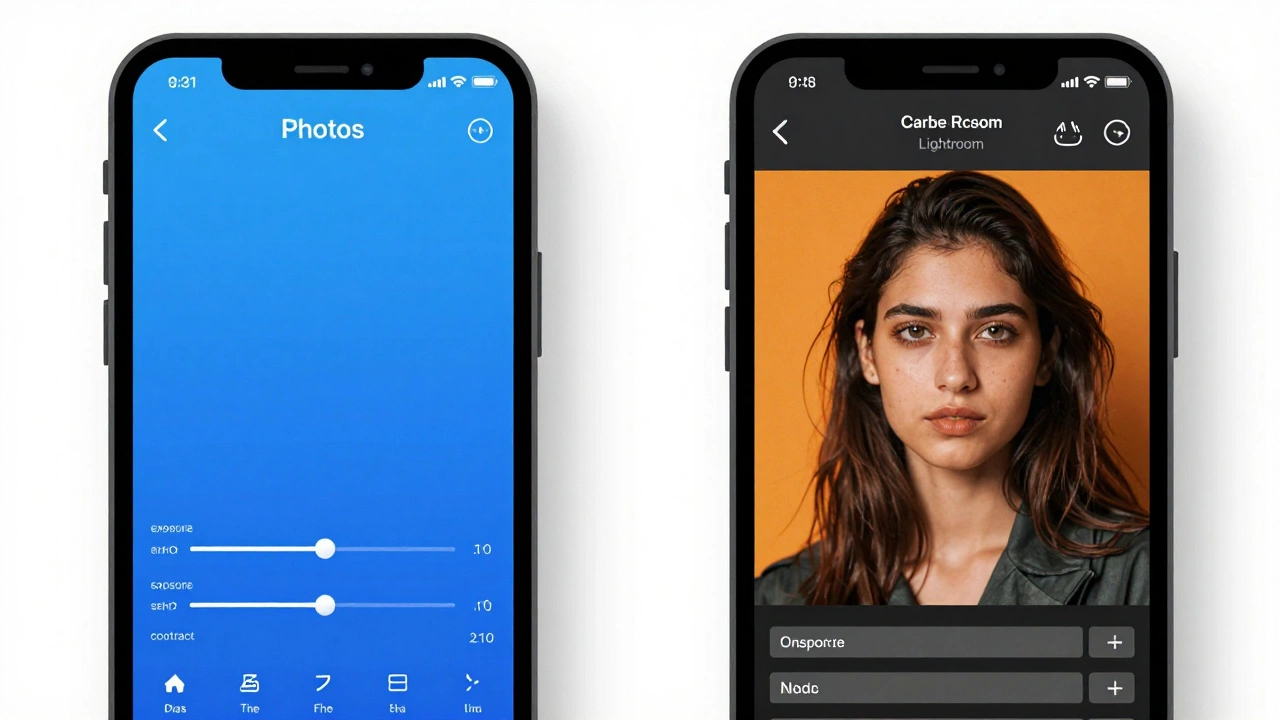
| Feature | iPhone Photos App | Third-Party Apps (e.g., Lightroom) |
|---|---|---|
| Cost | Free | Freemium / Subscription |
| Selective Edits | No (Global only) | Yes (Brushes/Masks) |
| RAW Support | Basic adjustments | Full DNG processing |
| Object Removal | No | Yes (AI-powered) |
| Cloud Sync | iCloud only | Adobe Cloud / Google Drive |
Top Third-Party Alternatives for Serious Editors
If the native tools aren't enough, the App Store Digital distribution platform for iOS applications developed by Apple offers industry-standard alternatives. Here are the three most reliable options based on user needs in 2026.
Adobe Lightroom Mobile
This is the gold standard for photographers who want desktop-grade control on mobile. The free version includes essential light and color tools, plus presets. The paid subscription unlocks masking, geometry corrections, and cloud sync across devices. If you shoot in RAW format, Lightroom handles the dynamic range far better than the native Photos app.
Snapseed
Owned by Google, Snapseed remains a favorite because it is completely free with no ads. Its standout feature is the "Selective" tool, which allows you to adjust brightness and structure in specific areas using radial masks. It also has a "Healing" brush for removing small blemishes or distractions, a feature missing from Apple's native editor.
VSCO
VSCO focuses less on technical correction and more on aesthetic film emulation. Its filters mimic classic film stocks like Kodak Portra or Fujifilm Provia. While it lacks advanced masking, its interface is intuitive for users who want a consistent, moody look across their Instagram feed without tweaking individual sliders.
Hidden Features: AI and Markup
Before downloading another app, check two hidden features in iOS that solve common problems:
- Markup Tool: Long-press any photo and select "Markup." This lets you draw, add text, or sign documents directly on the image. It’s perfect for annotating screenshots or adding quick notes.
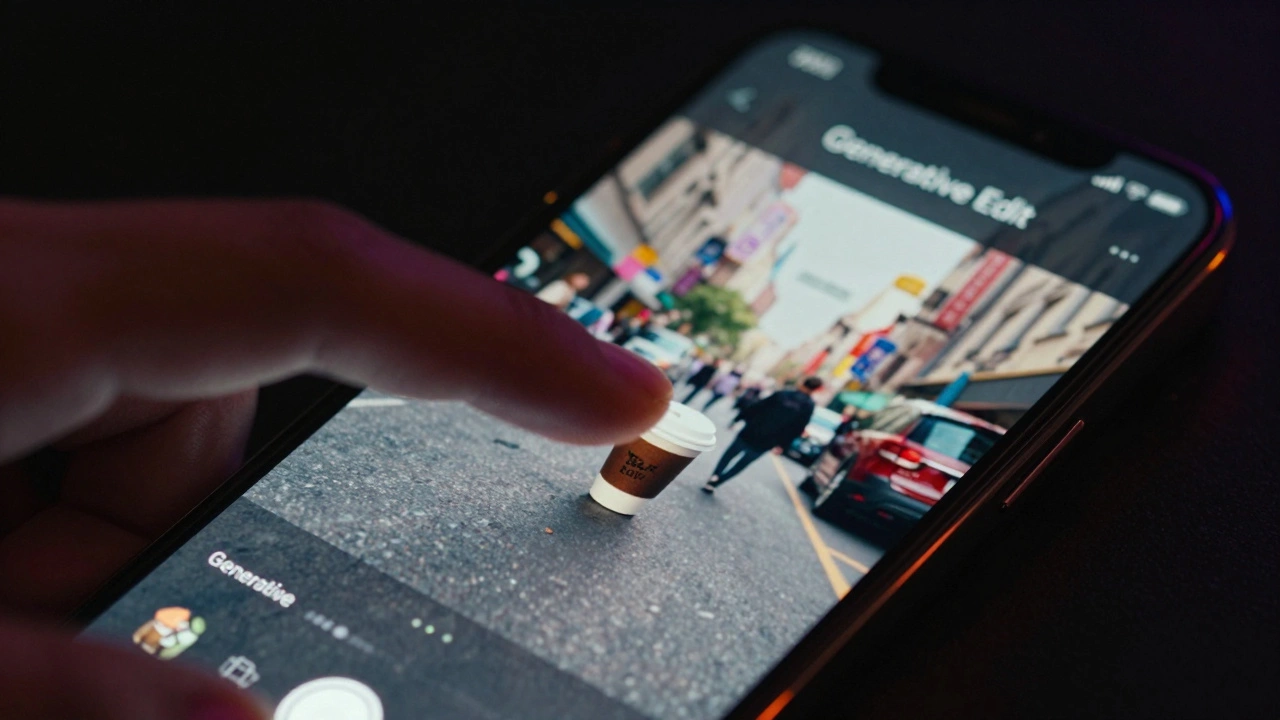
- Generative Edit (iOS 18+): If your iPhone runs the latest OS, you can use AI to move objects around the frame. Tap "Edit," then "Generative Edit," select an object, and drag it to a new position. The AI fills in the background automatically. This is a game-changer for composition fixes after the fact.
Workflow Tips for Faster Editing
Efficiency matters when you have dozens of photos to process. Here is how to streamline your workflow:
- Create Presets: In Lightroom or VSCO, save your favorite combination of adjustments as a preset. Apply it to new photos with one tap.
- Batch Edit: In the Photos app, select multiple images, tap the three dots, and choose "Edit All." Changes made to one image apply to all selected ones. Great for events with consistent lighting.
- Use Shortcuts: Create an iOS Shortcut that automatically applies a filter and shares the result to WhatsApp or Instagram. Automate the boring stuff.
FAQ
Is the iPhone Photos app free?
Yes, the Photos app comes pre-installed on every iPhone and is completely free. There are no subscriptions or in-app purchases required to access its core editing features.
Can I remove objects from photos on iPhone without third-party apps?
Not easily. The native Photos app does not have a healing brush or object removal tool. However, if you are running iOS 18 or later, you can use the Generative Edit feature to move objects, which indirectly removes them from their original spot. For precise removal, use Snapseed or Adobe Lightroom.
Does editing photos on iPhone reduce quality?
No. The Photos app uses non-destructive editing, meaning it stores adjustment data separately from the original image. Quality is preserved until you export or share the edited version. Third-party apps may compress images upon saving, so always check export settings.
Which app is best for professional photo editing on iPhone?
Adobe Lightroom Mobile is widely considered the best for professionals due to its support for RAW files, advanced masking tools, and cross-device cloud synchronization. It offers the closest experience to desktop editing software.
Can I edit videos on the iPhone Photos app?
Yes, the Photos app includes basic video editing tools such as trimming, cropping, stabilizing, and adjusting exposure and color. For advanced video effects, consider iMovie or LumaFusion.