How to Print an Email from Your Phone: 5 Easy Methods (2026 Guide)
 Aug, 25 2026
Email Printing Cost & Method Estimator
Select Your Printing Method
You’re sitting in a café, waiting for a job offer, or perhaps you just received that urgent lease agreement. The document is safely tucked away in your inbox, but now you need a physical copy. You look around, see no computer nearby, and wonder: printing an email from a phone is actually possible without hunting down a desktop PC.
The short answer is yes. Whether you have an iPhone, an Android device, or access to a local print shop, there are several reliable ways to turn that digital message into paper. This guide walks you through the most effective methods, ranging from free DIY solutions to professional services, so you can get your document printed quickly and correctly.
Key Takeaways
- AirPrint is the fastest method for iPhone users with access to a compatible Wi-Fi printer.
- Google Drive allows Android users to print emails directly from the cloud storage app.
- Local printing services like office supply stores or library kiosks are ideal when you lack home Wi-Fi.
- Always check the attachment format; PDFs print more reliably than raw HTML emails.
- For high-volume or large-format needs, consider using a dedicated online print service rather than a local kiosk.
Method 1: Using AirPrint on iPhone and iPad
If you own an Apple device, AirPrint is your best friend. It’s built into iOS and requires no extra apps. The key requirement? A printer that supports AirPrint and is connected to the same Wi-Fi network as your phone.
Here’s how it works in practice:
- Open your Mail app and tap the email you want to print.
- Tap the Share icon (the square with an arrow pointing up).
- Select Print from the menu.
- Tap Printer at the bottom of the screen. Your phone will scan for available AirPrint-compatible printers.
- Select your printer, adjust the number of copies if needed, and hit Print.
One common pitfall: if the email contains complex formatting or images, the preview might look slightly different from the final printout. To avoid surprises, consider saving the email as a PDF first (see Method 3) before sending it to the printer.
Method 2: Printing via Google Drive on Android
Android users don’t have a direct “Print” button in most mail apps, but Google Drive bridges that gap seamlessly. Since most emails can be saved as files, you can use Google Drive’s built-in printing feature.
Steps to follow:
- In your Gmail app, open the email and tap the three-dot menu.
- Select Download attachment if there is one. If not, tap Forward to yourself and attach the email body as a text file, or simply save the page as a PDF using a browser workaround.
- Open the Google Drive app. Find the downloaded file.
- Tap the three-dot menu next to the file and select Print.
- Choose your printer (must be on the same Wi-Fi) and confirm.
Pro tip: If your printer isn’t listed, ensure the Google Cloud Print service is active on your device (note: Google has deprecated this service for new setups, so direct Mopria or manufacturer-specific apps may be required for newer Android versions). For most modern Android phones, the native Mopria Print Service handles this automatically.
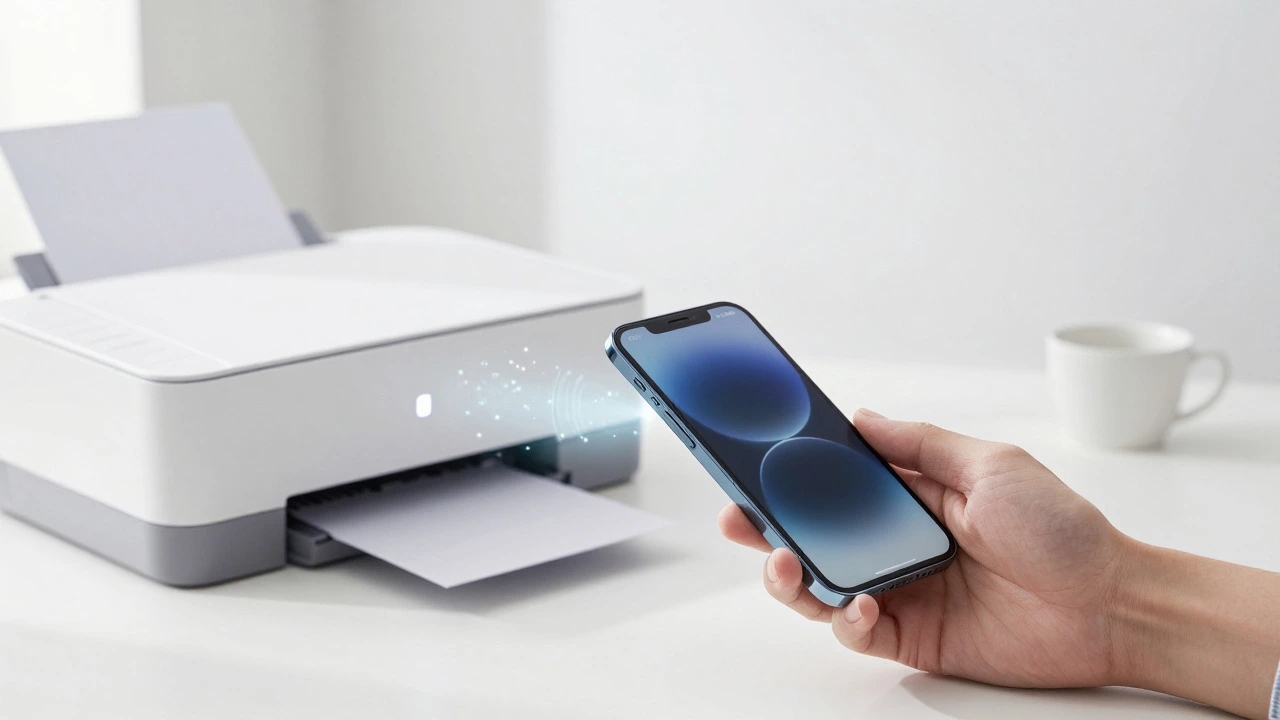
Method 3: Save as PDF, Then Print Anywhere
This is the most versatile method because it decouples the printing process from the email client. By converting the email into a PDF file, you create a universal document that any printer-home, office, or kiosk-can handle without formatting glitches.
How to convert an email to PDF:
- iPhone: Open the email → Share → Print → Pinch out on the preview image → Share → Save to Files.
- Android: Use a third-party app like Email to PDF Converter or forward the email to yourself with a “Save as PDF” extension installed.
Once you have the PDF, you can send it to any printer via Wi-Fi, Bluetooth, or even upload it to a cloud printing service. This method is especially useful when the email contains tables, logos, or multi-page content that might break when printed directly.
Method 4: Use Local Printing Services Near You
Not everyone has a home printer or access to a corporate Wi-Fi network. That’s where local printing services come in handy. In cities like Birmingham, UK, you’ll find numerous options:
- Office Supply Stores: Places like WHSmith or Office Depot often have self-service kiosks. You can email the file to a designated address or upload it via their app, then pick up the printout.
- Public Libraries: Many libraries offer free or low-cost printing for members. Bring your phone, log in, and print from the kiosk terminal.
- Cafés and Coworking Spaces: Some cafés allow customers to use their printers for a small fee. Just ask the staff.
When using these services, always confirm the accepted file formats (PDF is safest) and whether they charge per page or per document. Prices in the UK typically range from £0.10 to £0.25 per black-and-white page, and £0.50 to £1.00 for color.
Method 5: Online Print Services for High-Quality Output
If you need professional-grade prints-like for a portfolio, presentation, or legal document-consider using an online print service. Companies like Vistaprint, Moo, or local UK-based providers offer high-resolution printing with premium paper stocks.
Benefits include:
- Access to specialty papers (matte, glossy, linen, etc.)
- Bulk discounts for multiple copies
- Delivery straight to your door
The downside? It’s slower. Most online services take 2-5 business days for delivery. So, reserve this option for non-urgent, high-quality needs.
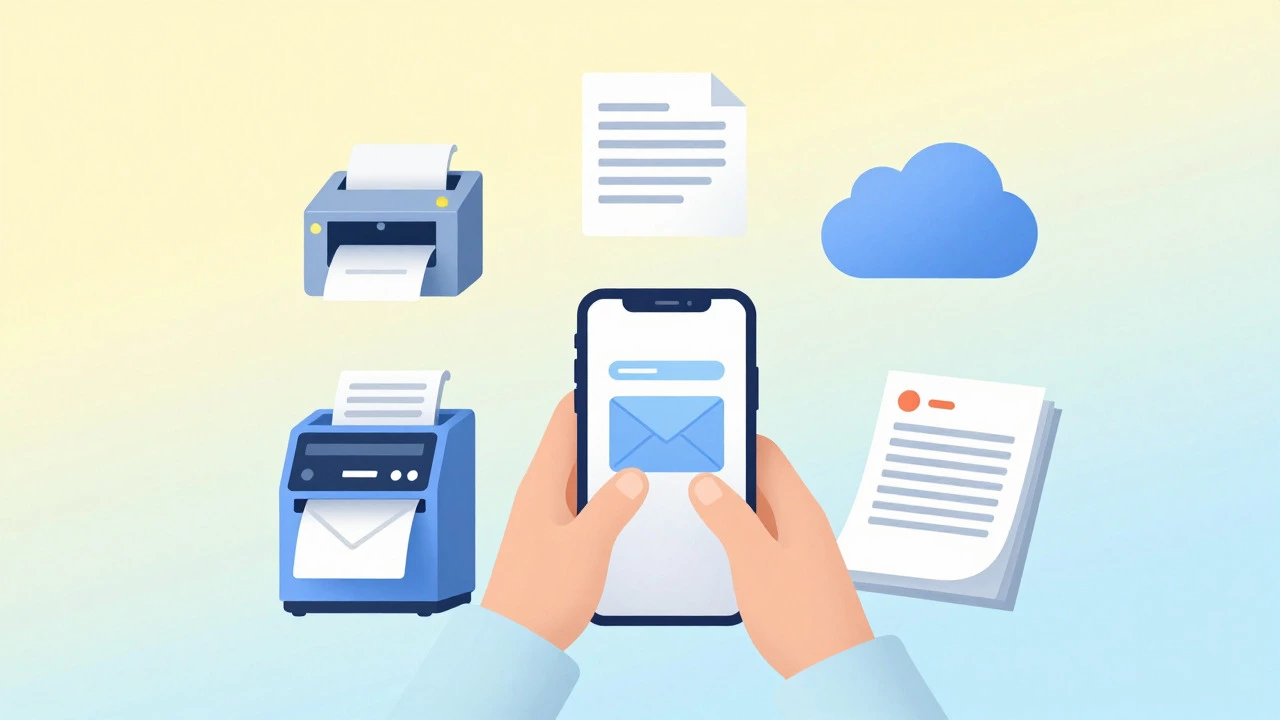
Comparison of Printing Methods
| Method | Best For | Cost | Speed | Quality |
|---|---|---|---|---|
| AirPrint (iOS) | iPhone users with home/office printers | Free (ink/paper only) | Instant | Good |
| Google Drive (Android) | Android users with Wi-Fi printers | Free (ink/paper only) | Instant | Good |
| Save as PDF + Kiosk | No home printer; public access | £0.10-£0.25/page | 5-10 mins | Very Good |
| Online Print Service | High-quality, bulk, or specialty paper | Varies (£5-£50+) | 2-5 days | Excellent |
Troubleshooting Common Issues
Even with the right method, things can go wrong. Here’s how to fix the most common problems:
- Printer not showing up: Ensure both your phone and printer are on the same Wi-Fi network. Restart the printer if needed.
- Blank pages: This usually happens when printing raw HTML emails. Convert to PDF first.
- Cut-off content: Adjust margins in the print preview. Set them to “Minimum” or “None” if space is tight.
- Slow printing: Large attachments (e.g., high-res images) can slow down transmission. Compress the file or print in sections.
Frequently Asked Questions
Can I print an email without a computer?
Yes. Using AirPrint on iPhone, Google Drive on Android, or saving the email as a PDF and uploading it to a local kiosk, you can print directly from your phone without ever touching a desktop or laptop.
What is the cheapest way to print an email from my phone?
If you have access to a public library, printing is often free for members. Otherwise, local office supply stores charge around £0.10-£0.25 per black-and-white page, which is cheaper than online services for single documents.
Why does my email print with missing images?
This happens when the printer struggles to render inline HTML images. Converting the email to a PDF ensures all visual elements are embedded in the file, preserving layout and images during printing.
Do I need special software to print from my phone?
No special software is needed for basic printing. iPhones use built-in AirPrint, while Android devices rely on Mopria or manufacturer-specific print services. For advanced features, apps like Adobe Acrobat or PDF converters can help.
Where can I find a printer near me in Birmingham, UK?
Search for “printing services near me” on Google Maps. Popular spots include WHSmith locations, university libraries (like the University of Birmingham), and coworking spaces such as WeWork or Impact Hub. Most offer self-service kiosks or staff-assisted printing.