How to Print Photos from Your Phone at CVS: Step-by-Step Guide
 May, 5 2026
CVS Photo Printing Cost Estimator
Select a photo size below to estimate your total cost. Bulk discounts apply automatically for orders of 10 or more prints.
4" x 6"
Standard Print
$0.15 - $0.205" x 7"
Medium Print
$0.39 - $0.498" x 10"
Large Print
$0.99 - $1.29Wallet
Per Strip
$0.10Selected Size: None
Quantity: 0
$0.00
Order via app for fastest pickup (1-2 hours).
You’ve got a folder full of vacation snapshots on your phone, and you want them in your hand by tomorrow. Can CVS actually print those digital files for you? The short answer is yes. But the process isn’t as simple as walking up to a counter and handing over your device. You need to know which method works best for your specific situation-whether you’re using the CVS Photo App, a self-service kiosk, or the online portal.
Most people assume they can just walk into any CVS pharmacy and ask an employee to print their photos. That’s not how it works anymore. CVS shifted its model years ago to focus on self-service and digital ordering to keep costs down and speed up service. Understanding this shift saves you time and frustration. Here is exactly how to get those pictures printed without wasting a trip.
Quick Summary / Key Takeaways
- Yes, you can print photos from your phone at CVS, but you must use the CVS Photo App, website, or in-store kiosks.
- The CVS Photo App is the easiest method: upload, pay, and pick up in-store within 1-2 hours (or same-day pickup).
- In-store kiosks allow immediate printing via USB drive or QR code scan; credit cards are required.
- Counter service generally does not accept direct phone transfers; staff cannot access your gallery.
- Pricing starts around $0.15 per standard print, with discounts for bulk orders.
Method 1: The CVS Photo Mobile App (Easiest)
The most reliable way to print photos from your phone at CVS is through the official CVS Photo App. This method bridges the gap between your mobile device and the store’s printing infrastructure. It eliminates the need for physical media like SD cards or USB drives.
Here is how the process works step-by-step:
- Download the App: Get the "CVS Pharmacy" app from the Apple App Store or Google Play Store. Ensure you have an account created.
- Select "Photo": Tap the Photo tab on the home screen. Choose "Prints" from the menu options.
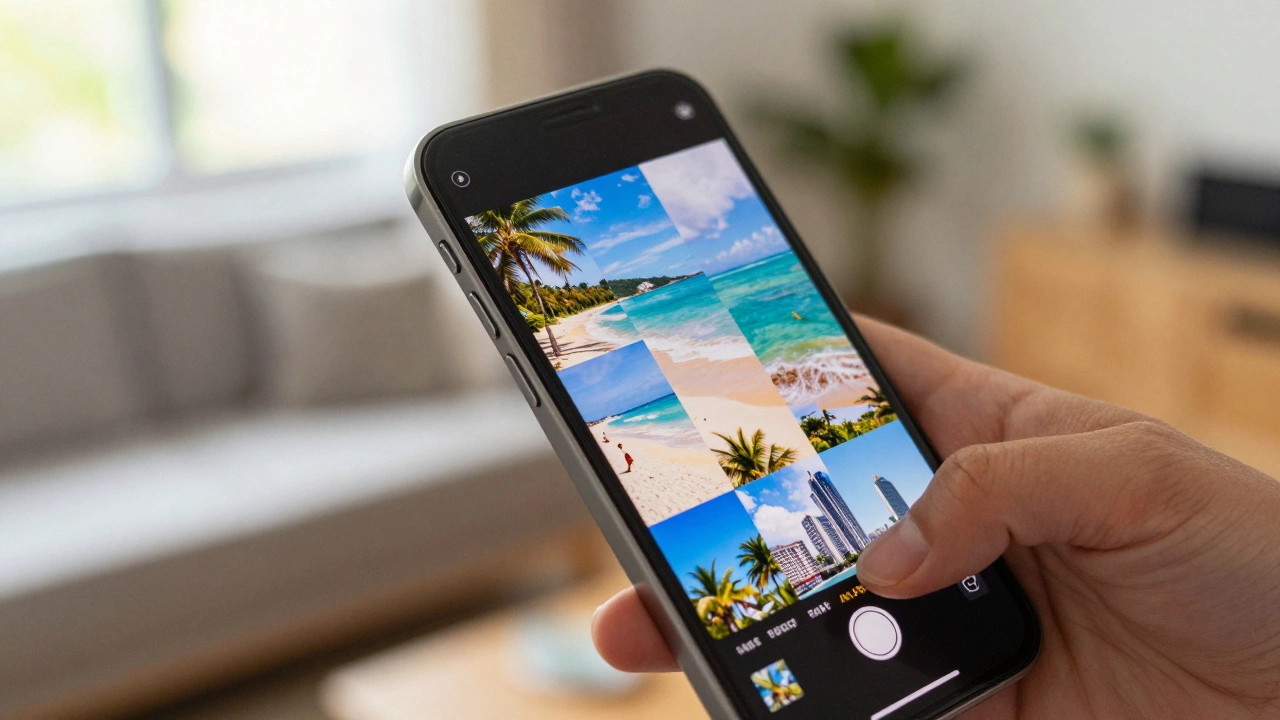
- Upload Images: Select photos directly from your phone’s camera roll. You can choose standard sizes like 4x6 inches, 5x7, or wallet-sized prints.
- Edit and Adjust: The app offers basic editing tools. You can crop, rotate, or apply filters. For best results, ensure your images are high-resolution. Low-quality uploads will result in pixelated prints.
- Choose Pickup Location: Select the nearest CVS store. Check the estimated ready time. Most stores offer "Ready in 1 Hour" or "Same-Day Pickup" if ordered before a certain cutoff time (usually 3 PM).
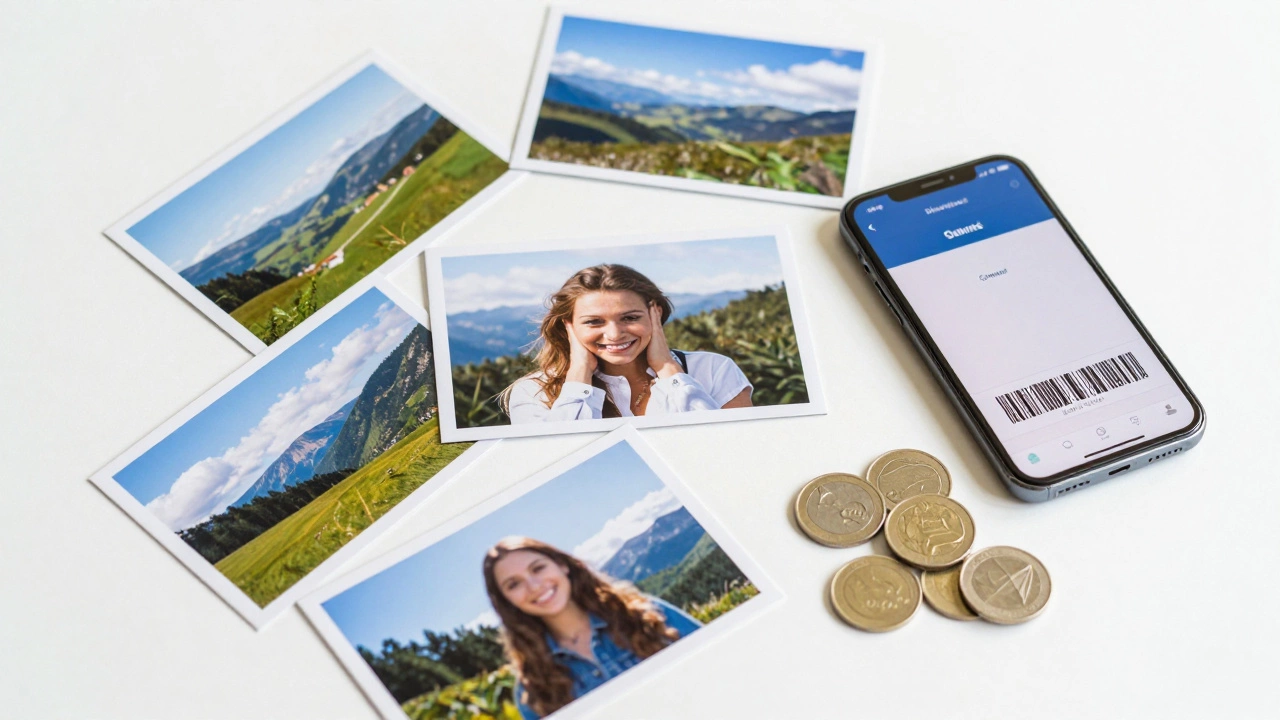
- Pay Online: Complete the transaction securely within the app. You will receive a confirmation email with a barcode.
- Pick Up: Go to the designated photo counter or shelf. Show the barcode to the associate or scan it at the self-service terminal.
This method is ideal because it handles payment digitally and ensures the store has your order queued up before you arrive. You don’t wait in line to figure out pricing or upload files.
Method 2: In-Store Self-Service Kiosks
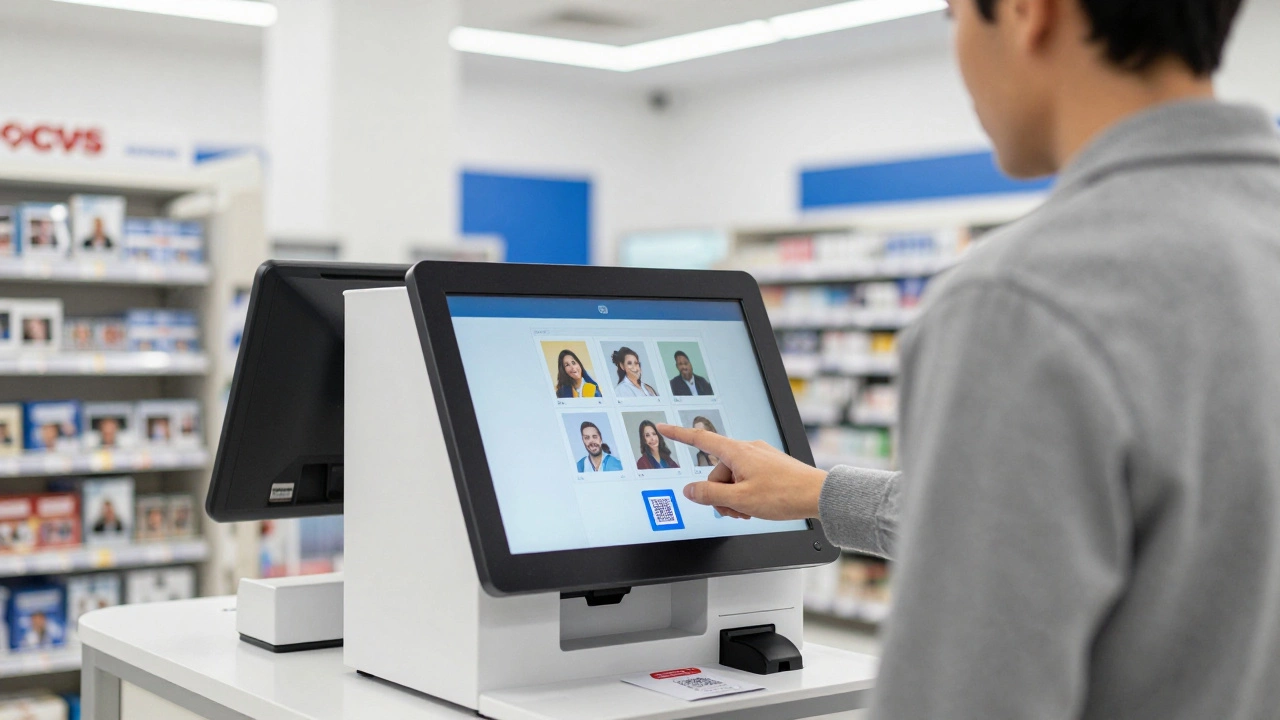
If you prefer to see your prints immediately, look for the Self-Service Photo Kiosk inside the store. These machines are usually located near the photo center or pharmacy counter. Not every CVS has one, so check the store map or ask an associate upon entry.
To use the kiosk:
- Connect Your Device: The kiosk typically accepts USB drives. If you don’t have one, you can transfer photos from your phone to a USB stick using a compatible adapter (Lightning to USB-C or Micro-USB) beforehand.
- QR Code Option: Some newer kiosks allow you to scan a QR code displayed on the screen using the CVS Photo App. This links your uploaded photos directly to the machine.
- Select and Print: Browse your images on the touchscreen. Select sizes and quantities. The machine calculates the cost instantly.
- Payment: Insert cash or swipe a credit/debit card. The kiosk prints your photos in under two minutes.
This option is faster for small batches but requires more preparation. You need the right hardware adapters if you’re transferring from a modern smartphone that lacks a traditional charging port.
Method 3: CVS.com Website
If you’re at home and planning a future visit, the CVS.com Photo Center is another robust option. It functions similarly to the app but offers a larger workspace for editing multiple photos at once.
Steps include:
- Log in to your account on CVS.com.
- Navigate to the "Photo" section and select "Prints."
- Drag and drop files from your computer or mobile browser.
- Review proofs carefully. Screen colors often differ from printed output, so adjust brightness/contrast slightly if needed.
- Place the order for in-store pickup.
This method is best for large orders where you want to organize layouts or combine prints with other products like photo books or calendars.
Pricing and Costs
Understanding the cost structure helps you budget for your project. CVS pricing varies slightly by location and promotions, but here are the standard rates as of 2026:
| Size | Price Per Print | Bulk Discount (10+) |
|---|---|---|
| 4" x 6" | $0.15 - $0.20 | $0.12 each |
| 5" x 7" | $0.39 - $0.49 | $0.35 each |
| 8" x 10" | $0.99 - $1.29 | $0.89 each |
| Wallet Size | $0.10 per strip | No discount |
Members of ExtraCare may occasionally receive coupons for discounted photo services. Always check the "Coupons" section in the app before placing an order. Note that prices increase during peak seasons like holidays.
Common Issues and Troubleshooting
Even with a smooth process, things can go wrong. Here are common pitfalls and how to avoid them:
- Low Resolution Errors: If your photos appear blurry or pixelated, the file resolution is likely too low. Aim for at least 300 DPI (dots per inch) for crisp prints. Most modern smartphones capture high-res images, but heavily compressed social media downloads may not be suitable.
- Order Not Ready: If your app says "Ready" but the counter is empty, wait 10-15 minutes. Sometimes delays occur due to equipment maintenance or high volume. Call the store directly using the number listed on the app.
- Kiosk Connectivity Problems: If the kiosk doesn’t recognize your USB drive, try formatting it to FAT32. NTFS formats often fail on older kiosks.
- Color Discrepancies: Screens emit light, while prints reflect it. Prints often look darker than screens. Brighten your image slightly before uploading to compensate.
Alternatives to CVS
If CVS isn’t available or convenient, consider these alternatives:
- Walgreens: Offers similar app-based ordering with competitive pricing. Often has longer operating hours.
- Shutterfly: Best for mail-order projects. Slower turnaround but higher quality paper options.
- Fuji Xerox Kiosks: Found in many malls and libraries. Accepts direct phone connections via Wi-Fi or Bluetooth in some locations.
- Home Printers: For frequent users, investing in a photo printer might be more cost-effective long-term, though initial setup costs are higher.
Each alternative has pros and cons. CVS remains popular due to its widespread store network and quick pickup times.
Pro Tips for Better Results
To maximize the quality of your prints:
- Clean Your Lens: Smudges on your phone camera cause haze in photos. Wipe it before shooting.
- Use Natural Light: Indoor lighting often casts yellow/orange tones. Shoot near windows for balanced colors.
- Avoid Over-Editing: Heavy filters can introduce artifacts. Keep edits subtle for natural-looking prints.
- Check Orientation: Ensure landscape/portrait settings match your desired layout to prevent awkward cropping.
These small adjustments make a significant difference in the final product.
Can I print photos from my phone directly at the CVS counter?
No, CVS employees cannot access your phone’s gallery directly. You must use the CVS Photo App, website, or in-store kiosks to upload and pay for prints before picking them up.
How long does it take to get photos printed at CVS?
If you use the app or website for in-store pickup, expect 1-2 hours for standard orders. Same-day pickup is available if ordered before the store’s cutoff time. Kiosk prints are immediate.
Do I need a USB drive to use the CVS kiosk?
Most kiosks require a USB drive. However, some newer models support QR code scanning via the CVS Photo App, allowing direct phone-to-kiosk transfers without physical media.
What is the maximum number of photos I can order at once?
There is no strict limit, but large orders (over 100 prints) may require advance notice or split shipments. For very large batches, consider professional lab services instead.
Are CVS photo prints archival quality?
CVS uses dye-sublimation technology, which produces good quality prints suitable for personal use. They are not archival-grade like professional lab prints but last several years if stored properly away from sunlight.
Can I edit photos before printing at CVS?
Yes, both the CVS Photo App and website offer basic editing tools including cropping, rotation, red-eye removal, and color adjustments. Advanced editing should be done externally before uploading.
Does CVS charge extra for rush orders?
Standard in-store pickup is included in the base price. Rush fees may apply for next-day shipping or expedited processing during peak holiday seasons. Check current promotions in the app.
What happens if my prints come out defective?
If prints are damaged or incorrect, bring the original receipt and defective copies to the photo counter. CVS typically replaces them free of charge or issues a refund, depending on store policy.