Is Photopea Good for Beginners? A Realistic Review for New Editors
 Apr, 17 2026
Photopea Tool Finder: Which Feature Do You Need?
Don't let the interface intimidate you. Select what you want to achieve, and we'll tell you which tool to use first.
For the short answer: yes, it is good, but with a catch. It isn't "simple" like a filter app on your phone; it's a full-blown creative suite that happens to live in your browser. If you're okay with a slight learning curve in exchange for professional tools, it's a goldmine.
Quick Takeaways for New Users
- Cost: Completely free (supported by a small sidebar ad).
- Access: No installation needed; works in any web browser.
- Skill Level: Moderate. You'll need to learn about layers and masks.
- Compatibility: Opens .PSD, .AI, and .Sketch files perfectly.
The Learning Curve: Why it Feels Like Photoshop
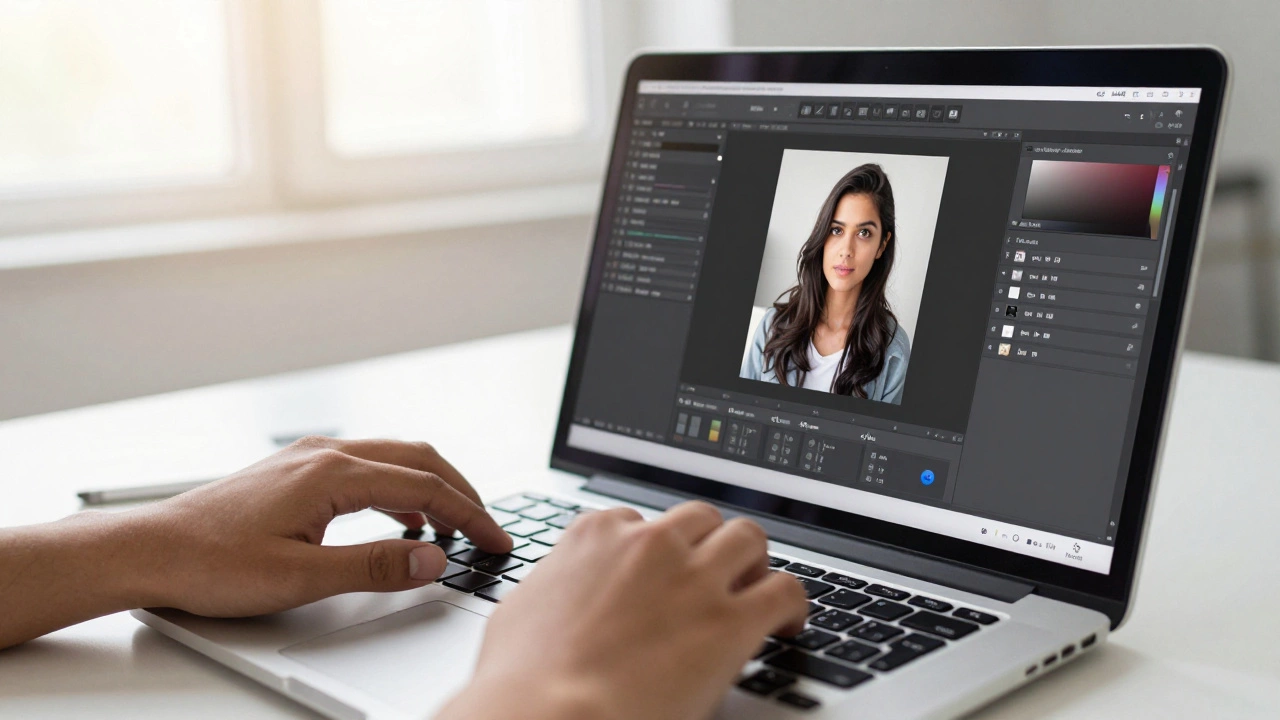
When you first open Photopea is a free, web-based advanced graphic editor that mimics the layout and functionality of Adobe Photoshop. It is designed to be a direct alternative to high-end desktop software without the price tag. If you've ever seen a screenshot of Adobe Photoshop, you'll notice Photopea looks almost identical. This is both a blessing and a curse for a beginner.
The blessing is that almost every tutorial you find on YouTube for Photoshop works for Photopea. The curse is that the interface can look intimidating. You'll see dozens of icons on the left, a complex menu bar at the top, and a wall of panels on the right. However, you don't need to know what every button does to start. Most beginners only need about 20% of the tools to do 80% of their work.
For example, if you just want to remove a pimple or a stray power line from a landscape photo, you only need the Healing Brush. You don't need to worry about the Pen Tool or Vector Masks right away. The key is to ignore the noise and focus on one tool at a time.
Core Features That Actually Help Beginners
What makes Photopea surprisingly accessible is how it handles files. Most beginners struggle with file formats. Photopea simplifies this by allowing you to drag and drop images directly from your computer into the browser. It handles JPEG, a commonly used lossy compression format for digital images, and PNG, a lossless format that supports transparency, ideal for logos, without any fuss.
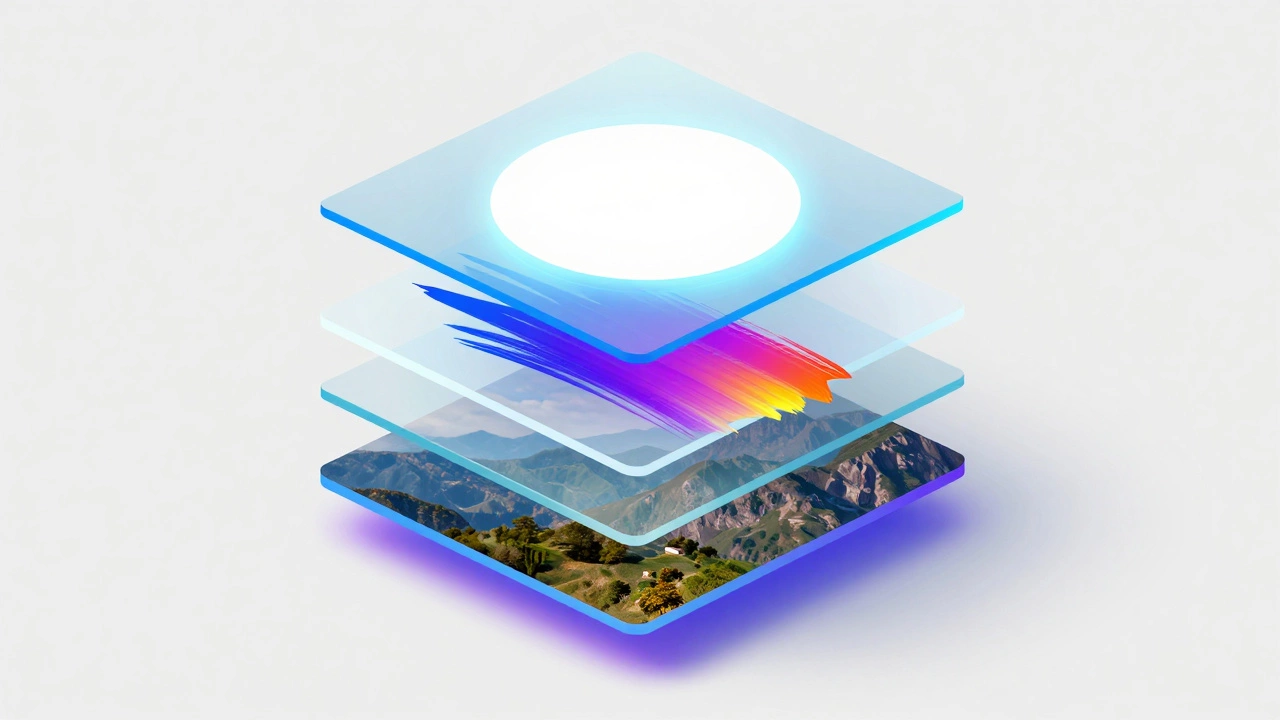
Then there's the concept of Layers. This is the single most important thing for a beginner to learn. Think of layers as clear sheets of plastic stacked on top of each other. You can draw on one sheet without ruining the image on the sheet below. If you make a mistake on the top layer, you just delete that layer, and your original photo remains untouched. This "non-destructive" workflow is exactly why Photopea is a better starting point than basic paint programs.
| Feature | Mobile Apps (Canva/Picsart) | Photopea | Adobe Photoshop |
|---|---|---|---|
| Price | Freemium | Free | Subscription |
| Layer Control | Basic | Advanced | Professional |
| Installation | App Store | None (Browser) | Heavy Install |
| Learning Curve | Low | Medium | High |
Common Roadblocks for Newbies
It's not all sunshine and rainbows. There are a few things that might frustrate you. First, because it's a web app, it relies on your RAM (Random Access Memory). If you try to open a massive 50-megapixel photo on a cheap laptop with 4GB of RAM, the browser might crash. It doesn't use your computer's hard drive the way a downloaded program does; it lives in the browser's temporary memory.
Another quirk is the advertisement. To keep the service free, there's a vertical ad banner on the right. It doesn't get in the way of the tools, but for some, it feels "unprofessional." You can pay a small fee to remove it, but for a beginner just learning the ropes, it's a fair trade for a free tool.
Lastly, the Selection Tools can be tricky. Trying to cut out a person from a background using the Lasso tool takes a steady hand and patience. However, Photopea has introduced "Magic Cut," which uses AI to help you remove backgrounds with much less effort. It's a lifesaver for those of us who don't have the patience for pixel-perfect clicking.
How to Actually Start Without Getting Overwhelmed
If you're staring at the blank gray screen and feeling panicked, follow this path. Don't try to learn the whole program; just do these three things in order:
- The Basic Crop and Resize: Learn how to frame your image. Use the Crop tool to remove unwanted edges and the Image Size menu to make sure your file isn't too huge for the web.
- Adjustment Layers: Instead of clicking "Image > Adjustments," look for the Adjustment layer icon in the Layers panel. This allows you to change the brightness or contrast and change your mind later without permanently altering the pixels.
- The Brush and Eraser: Get comfortable with the brush tool. Learn how to change the "Hardness" of the brush. A soft brush is great for blending; a hard brush is for sharp edges.
By focusing on these, you avoid the strong photo editing apps fatigue that comes from trying to master 100 tools at once. You're building a foundation of how digital imaging works, which makes moving to any other software much easier later on.
The Verdict: Who is it really for?
If you are a complete novice who just wants to put a filter on a photo and call it a day, Photopea might be overkill. You'd be happier with a simple app. But if you have an itch to actually design-to make composites, remove objects, or create digital art-Photopea is the best entry point available today.
It bridges the gap between "too simple to be useful" and "too expensive to be accessible." Since it uses the same logic as industry standards, you aren't just learning a tool; you're learning a professional skill. If you eventually move to a professional studio environment, the transition will be seamless because you've already mastered the logic of the Raster Graphics workflow.
Is Photopea really free?
Yes, it is completely free to use. The developers fund the project through a small advertisement on the right side of the screen. There is a paid premium version, but it only removes the ads and adds a few minor conveniences; all the actual editing tools are free for everyone.
Do I need to install anything to use it?
No installation is required. You just go to the website in any modern browser (Chrome, Firefox, Safari) and start editing. This makes it great for people using Chromebooks or computers where they don't have administrative rights to install software.
Can I open Photoshop files (.psd) in Photopea?
Yes, and this is one of its best features. It can open .psd files and maintain the layers, groups, and blending modes, which is very rare for a free web app. You can even save your work back as a .psd file.
Will my computer slow down while using Photopea?
Because it runs in your browser, it uses your RAM. If you have many tabs open or are working with very high-resolution images, you might notice some lag. Closing unused browser tabs usually solves most speed issues.
Is it safe to upload my photos to Photopea?
Photopea processes images locally in your browser. This means your photos aren't actually uploaded to a remote server for processing; the work happens on your own computer's hardware using the browser as the interface, which is much more private than typical cloud editors.
Next Steps for Your Creative Journey
If you've decided to give Photopea a try, don't start by reading the manual. Instead, pick a project. Try to make a YouTube thumbnail or a birthday card. When you get stuck on a specific task-like "how do I make the background blurry?"-search for that specific solution. This project-based learning is far more effective than trying to memorize the toolbar.
Once you're comfortable, try experimenting with Blending Modes. This is where you can make a texture look like it's painted onto a wall or make a light leak look natural. It's the secret sauce that turns a basic edit into a piece of art. From there, you might want to look into more advanced concepts like Vector Paths or Color Grading to really polish your work.