Best Free Photo Editing Apps for Laptops in 2026
 Sep, 18 2026
Free Photo Editor Finder
Not sure which free app is right for you? Answer these three questions to get a personalized recommendation.
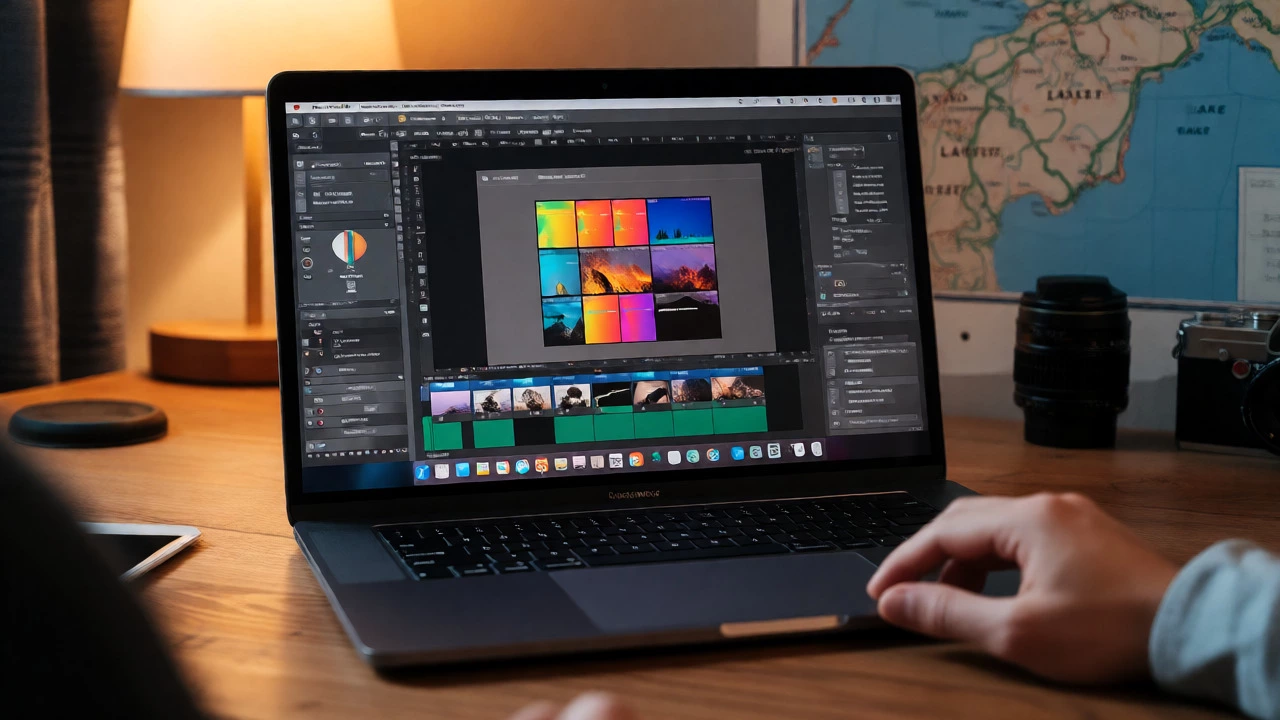
You just bought a new laptop. The screen is crisp, the processor is fast, and you have a folder full of raw images from your last trip to the Lake District. You open up the default photo viewer, click "Edit," and realize it does absolutely nothing useful. You need real power-layers, color grading, noise reduction-but you don't want to pay £10 a month for Adobe Creative Cloud. Sound familiar?
Here is the hard truth: there is no single "best" app because "best" depends entirely on what you are trying to do. Are you fixing exposure on vacation snaps? Retouching portraits for Instagram? Or doing complex compositing for digital art? In 2026, the gap between free and paid software has shrunk dramatically, but choosing the wrong tool can waste hours fighting with clunky interfaces instead of creating.
Quick Summary / Key Takeaways
- GIMP remains the most powerful free option for advanced users who need Photoshop-like layer control.
- DigiKam is unmatched for managing massive libraries of thousands of photos without slowing down your laptop.
- Darktable offers professional-grade RAW processing and non-destructive editing for photographers.
- Paint.NET is the sweet spot for Windows users who want speed and simplicity without the learning curve.
- Canva (Web) dominates for quick social media graphics if you prefer browser-based convenience over desktop installation.
The Heavyweight Champion: GIMP
If you ask any serious photographer or graphic designer about GIMP (GNU Image Manipulation Program), they will tell you it is the closest thing to Photoshop you can get for zero cost. It is not pretty out of the box. The interface looks like it was designed by engineers who loved functionality but hated aesthetics. But once you customize the workspace, it becomes a beast.
GIMP supports layers, masks, channels, and paths. This means you can composite images, remove backgrounds with precision, and apply complex filters that would require paid plugins in other apps. For example, using the "Fuzzy Select" tool combined with layer masks allows you to isolate subjects with accuracy that rivals expensive AI tools. However, be warned: the learning curve is steep. If you have never used layers before, expect to spend a weekend watching tutorials before you feel comfortable.
One major advantage in 2026 is the plugin ecosystem. Tools like Resynthesizer (for content-aware fill) work seamlessly within GIMP, allowing you to erase unwanted objects from a photo almost as well as Adobe's Generative Fill. If your laptop has at least 8GB of RAM, GIMP runs smoothly even on older hardware.
For Photographers Who Shoot RAW: Darktable
If your primary goal is developing RAW files rather than heavy manipulation, Darktable is likely your better choice. Unlike GIMP, which works on pixels, Darktable works on light data. It uses a module-based workflow similar to Adobe Lightroom Classic. You import your photos, apply global adjustments like exposure and white balance, and then use local masks to dodge and burn specific areas.
Darktable is non-destructive, meaning your original file stays untouched. This is crucial when you are experimenting with different looks. I recently edited a series of low-light shots from a Birmingham concert using Darktable’s "Shadhi" module, which reduced noise while preserving skin texture far better than simple smoothing filters. The downside? It requires a decent GPU. If you are running an integrated graphics card on a budget laptop, rendering previews might lag.
| Feature | GIMP | Darktable | DigiKam | Paint.NET |
|---|---|---|---|---|
| Primary Use Case | Compositing & Design | RAW Development | Library Management | Quick Edits |
| Learning Curve | High | Medium-High | Low-Medium | Very Low |
| OS Support | Win/Mac/Linux | Win/Mac/Linux | Win/Mac/Linux | Windows Only |
| File Format Support | PSD, PNG, JPEG, TIFF | RAW, DNG, JPEG, TIFF | All Major Formats | PNG, JPEG, PSD* |
| Performance on Low Specs | Good | Requires GPU | Excellent | Fastest |
Managing Chaos: DigiKam
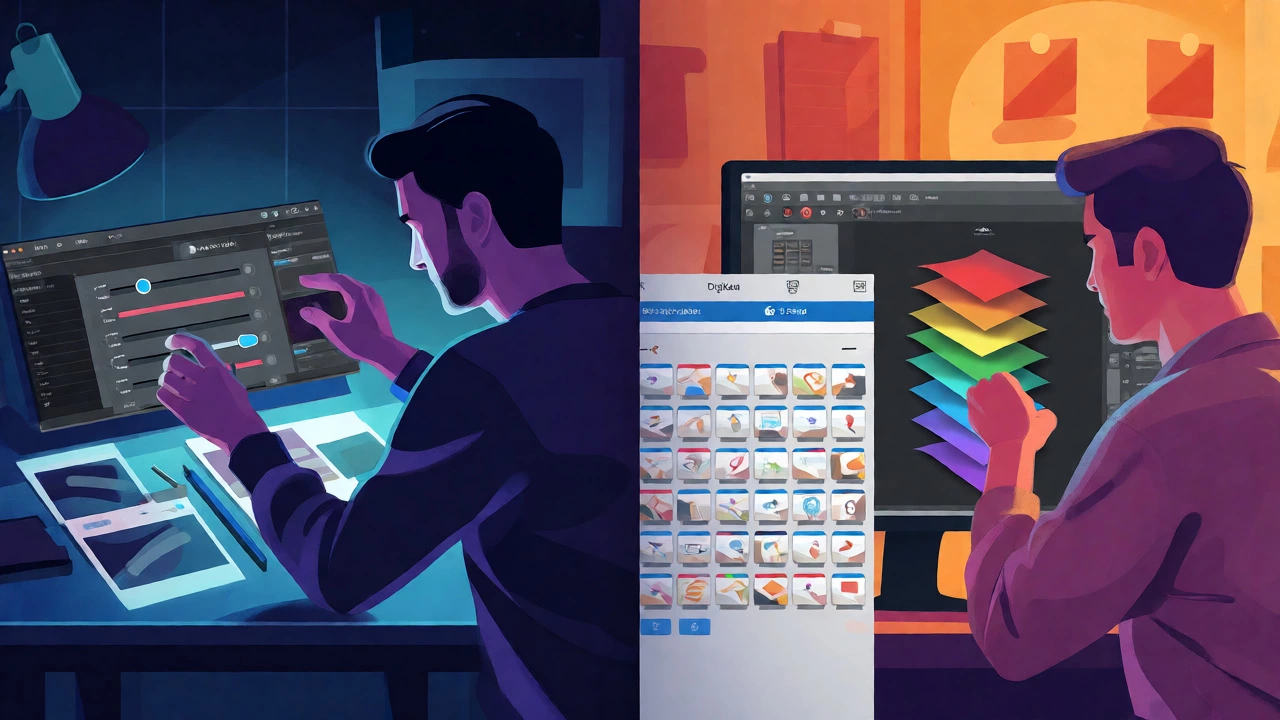
Most people forget that editing is only half the battle. Finding the right photo among 50,000 thumbnails is the other half. DigiKam is a free, open-source photo management application that doubles as a capable editor. It indexes your entire library, allowing you to search by date, camera model, face recognition, or GPS location instantly.
Why choose DigiKam over Lightroom? Speed and price. DigiKam handles large libraries efficiently without demanding a subscription. Its built-in editor includes basic correction tools, tone curves, and color balance. While it lacks the deep retouching capabilities of GIMP, it integrates perfectly with external editors. You can tag photos in DigiKam, send them to GIMP for detailed work, and save them back-all within one workflow. For anyone organizing family archives or professional portfolios, this is a lifesaver.
The Windows Native: Paint.NET
If you are on Windows and find GIMP too complicated and Darktable too technical, Paint.NET is the middle ground. Originally created as a replacement for Microsoft Paint, it evolved into a robust editor supporting layers, unlimited undo history, and special effects.
It is incredibly lightweight. You can launch it in seconds, make quick adjustments to contrast or saturation, add text overlays, and export. It doesn’t handle RAW files natively well (you need plugins), but for JPEGs and PNGs, it is unbeatable for speed. Many bloggers and small business owners in the UK use Paint.NET for resizing images for websites because it preserves quality better than online converters and is faster than launching Photoshop.
Browser-Based Contenders
Not everyone wants to install software. If you have a stable internet connection, web-based editors offer surprising power. Photopea is essentially a clone of Photoshop that runs in your browser. It opens PSD files, supports smart objects, and feels eerily familiar if you know Adobe shortcuts. It is perfect for quick fixes when you are on a borrowed laptop or working from a cafe.
Another strong contender is Canva. While often dismissed by purists, its "Magic Edit" and background remover tools are surprisingly effective for social media content. It won’t replace a pro editor for high-end print work, but for Instagram stories or LinkedIn banners, it is efficient and template-driven.
How to Choose Based on Your Laptop Specs
Your hardware dictates your experience more than you think. Here is a simple rule of thumb:
- Under 4GB RAM: Stick to Paint.NET or web-based tools like Photopea. GIMP and Darktable will struggle.
- 4GB-8GB RAM: GIMP works fine. Darktable might be slow with large RAW batches. DigiKam is excellent here.
- 8GB+ RAM + Dedicated GPU: You can run Darktable comfortably. Consider installing plugins for GIMP to unlock advanced features.
Also, consider your operating system. Mac users often prefer Pixelmator Pro (paid) or Seashore (free, limited). Linux users have native support for all the above. Windows users have the widest selection, including Paint.NET.
Common Pitfalls to Avoid
Don't try to learn everything at once. Pick one tool and master it. Switching between GIMP and Darktable constantly will confuse your muscle memory. Also, beware of "free" apps that bombard you with ads or watermark your exports. The open-source options listed here are genuinely free-no watermarks, no hidden fees.
Finally, always edit a copy of your image, not the original. Even non-destructive editors can corrupt metadata if you aren't careful. Keep your originals backed up on an external drive or cloud storage.
Is GIMP really comparable to Photoshop?
GIMP is comparable for core tasks like layering, masking, and drawing. However, it lacks some advanced AI features found in modern Photoshop versions, such as neural filters and sophisticated generative fill. For most hobbyists and professionals doing standard edits, GIMP is sufficient.
Can I edit RAW files in Paint.NET?
Not natively. You need to install third-party plugins like RawImageLoader to view and edit RAW files in Paint.NET. Without these plugins, it primarily handles compressed formats like JPEG and PNG.
Which app is best for beginners?
Paint.NET is the easiest to pick up due to its simple interface. For those interested in photography specifically, Darktable has a steeper initial learning curve but offers guided modules that help understand how light and color interact.
Do these apps work on Mac?
Yes, GIMP, Darktable, and DigiKam all have official macOS versions. Paint.NET is exclusive to Windows. Mac users looking for a free alternative might also look at Seashore, though it is less feature-rich than GIMP.
Is Photopea safe to use?
Yes, Photopea processes images locally in your browser whenever possible, meaning your files aren't necessarily uploaded to a server unless you explicitly save them to a cloud service. Always check their privacy policy if handling sensitive documents.