Photoshop vs Photopea: Which Editor Fits Your Workflow?
 Oct, 9 2026
Which Editor Fits Your Workflow?
Answer these 5 questions to find out which tool is the best fit for your current projects.
1. How often do you edit images?
2. What kind of files do you primarily work with?
3. What is your primary device setup?
4. Do you need advanced features like Neural Filters, 3D, or Video Editing?
5. What is your stance on subscriptions and offline access?
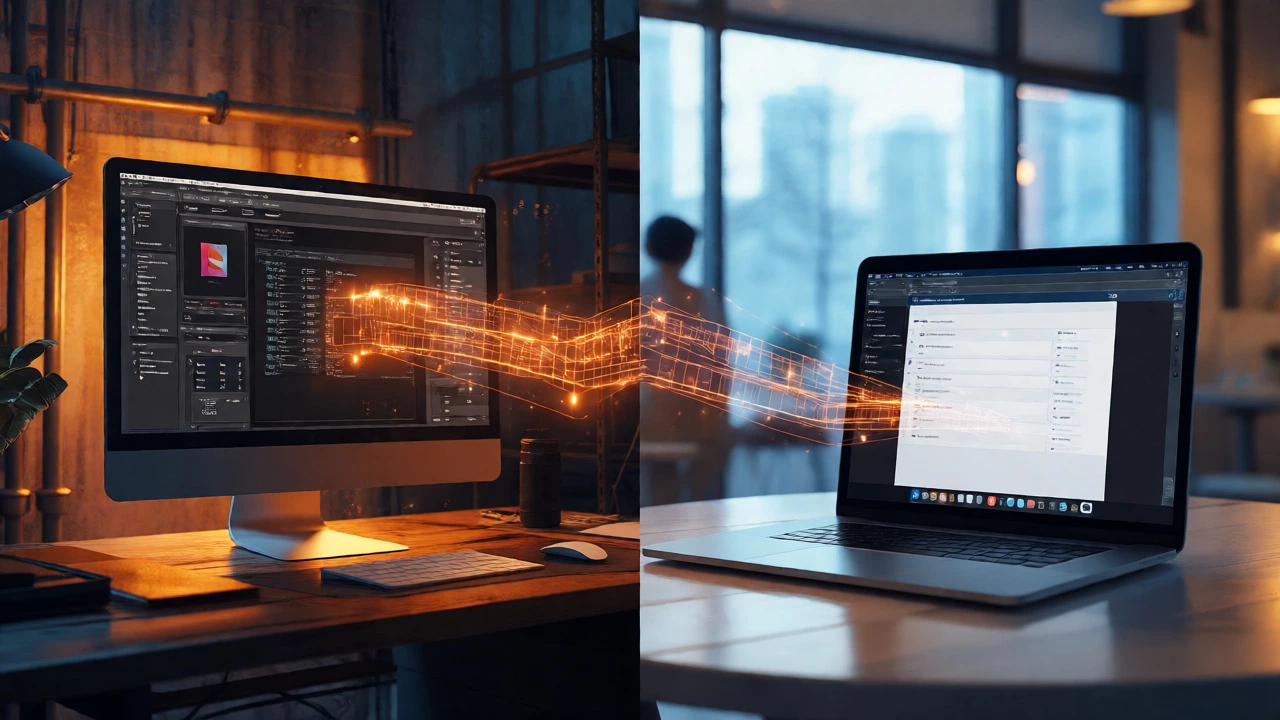
You open a raw file from your camera. You need to fix the exposure, remove a stray hair, and export it for Instagram. Do you launch a 4GB installer that takes three minutes to load, or do you just hit Ctrl+Alt+N in your browser? This is the daily dilemma for millions of creators. For years, Adobe Photoshop was the only serious option. Then Photopea showed up, promising professional tools without the subscription fee or the heavy install.
But can a web app really replace industry-standard desktop software? The short answer is no, not entirely. The long answer is more interesting. It depends on what you are actually doing. If you are a graphic designer managing complex brand assets with hundreds of layers and smart objects, Photopea might frustrate you. If you are a social media manager needing quick retouches on a Chromebook, Photoshop feels like using a sledgehammer to crack a nut.
The Core Difference: Installation vs Accessibility
Adobe Photoshop is a raster graphics editor developed by Adobe Inc. It is a desktop application that requires installation on Windows or macOS. Since 2013, it has operated on a subscription model, meaning you pay monthly or annually to use it. It runs locally on your hardware, leveraging your CPU and GPU directly for performance-intensive tasks.
Photopea is a web-based image editor created by Ivan Kutskir. It runs entirely in your browser, requiring no download or installation. It mimics the interface and functionality of Photoshop closely, supporting PSD files natively. Because it is JavaScript-heavy, its performance relies heavily on your browser’s engine and available RAM.
The immediate practical difference? Speed of access. I often find myself at a client’s office with a laptop that doesn’t have my license activated. With Photopea, I’m editing in ten seconds. With Photoshop, I’m logging into Creative Cloud, waiting for syncs, and hoping the internet connection holds. However, once you are inside Photoshop, the stability during massive operations-like applying Gaussian Blur to a 50-megapixel image-is noticeably smoother than in a browser tab.
Feature Set: Where They Overlap and Diverge
Visually, they look almost identical. If you know how to use one, you know 90% of the other. Layers, masks, blending modes, and adjustment layers work exactly the same way. But when you dig deeper, the gaps appear.
Photoshop’s strength lies in its depth. Features like Neural Filters, Content-Aware Fill (the advanced version), and 3D integration are robust. Its brush engine is highly customizable, allowing for pressure sensitivity nuances that digital painters rely on. Photopea supports basic brushes but lacks the sophisticated texture mapping and dynamic stroke behavior found in the desktop version.
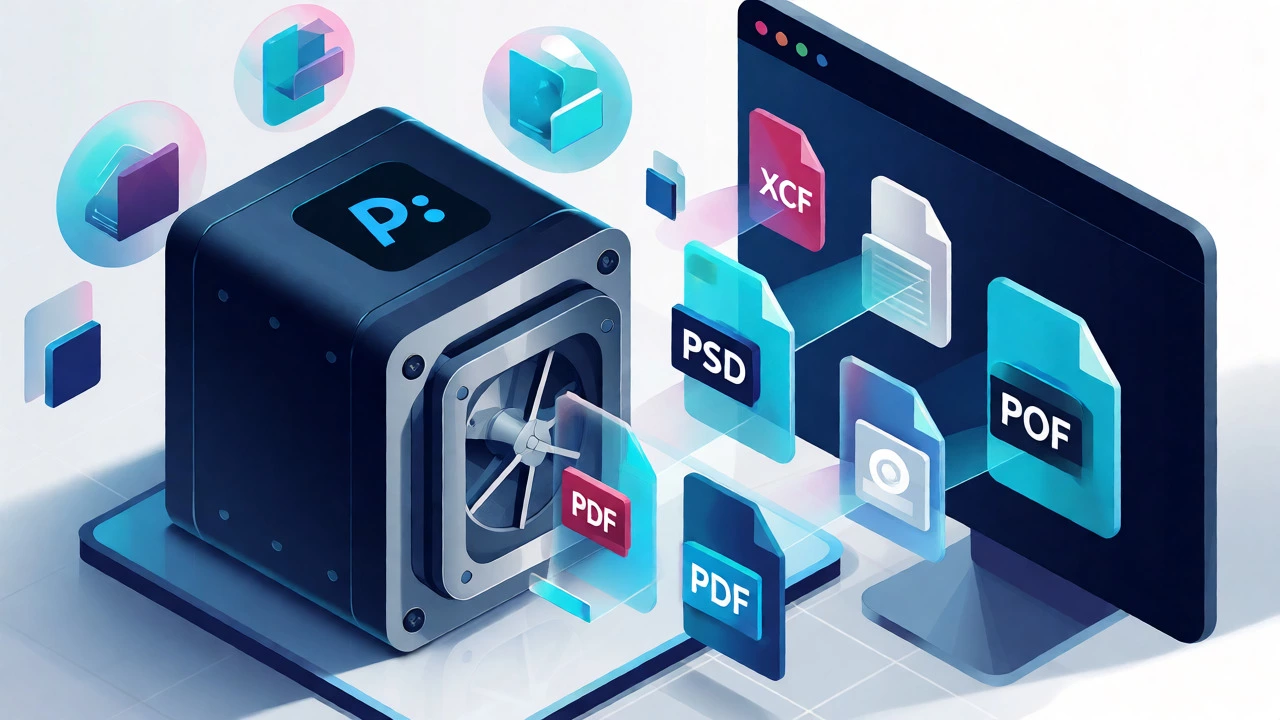
Conversely, Photopea excels in compatibility. It opens PSD, XCF (GIMP), Sketch, XD, and PDF files right out of the box. Photoshop needs plugins or specific workflows to handle some of these formats efficiently. If you collaborate with designers who use different tools, Photopea acts as a universal translator.
| Feature | Adobe Photoshop | Photopea |
|---|---|---|
| Platform | Desktop (Win/Mac/iPad) | Web Browser (Any OS) |
| Cost | ~$22.99/month (Single App) | Free (with ads) or ~$9/year Premium |
| File Support | Native PSD, AI, RAW, TIFF, etc. | PSD, XCF, Sketch, XD, PDF, SVG, RAW (limited) |
| Performance | High; uses local GPU/CPU | Variable; limited by browser/RAM |
| Advanced Tools | Neural Filters, 3D, Video Timeline | Basic filters, no video timeline |
| Offline Use | Yes (after activation) | No (requires internet) |
Performance and Hardware Requirements
This is where the rubber meets the road. Photoshop is resource-hungry. On an older laptop, opening a complex PSD with 50+ layers can cause stuttering if you don’t have at least 16GB of RAM and a dedicated GPU. But once loaded, it stays responsive because it manages memory directly.
Photopea pushes this burden onto your browser. Chrome is notorious for eating RAM. When you stack multiple high-resolution images in Photopea, you might see "Aw, Snap!" errors if your browser crashes. I’ve seen users on 8GB RAM machines struggle with files larger than 20MB in Photopea, whereas Photoshop handles them comfortably. However, on modern machines with SSDs and fast processors, Photopea is surprisingly snappy for medium-sized projects.
There is also the issue of latency. In Photoshop, undoing a step is instantaneous. In Photopea, if you have a slow internet connection, saving your work back to the server or cloud storage can introduce a slight delay. For iterative design work, this friction adds up.
Collaboration and File Management
Adobe has invested heavily in collaboration. With libraries, shared clouds, and team plans, multiple people can work on assets simultaneously. You can link Smart Objects across documents. If you update a logo in one place, it updates everywhere. This ecosystem is powerful for agencies.
Photopea is fundamentally single-user. There is no real-time co-editing. You save a file, send the link, and hope the other person doesn’t break it. While this sounds primitive, it simplifies things for freelancers. You don’t need to manage complex permission settings or worry about someone accidentally deleting a layer while you’re working. Just save, share, done.
File management differs too. Photoshop integrates with Adobe Bridge and Lightroom Classic, creating a seamless workflow for photographers who shoot thousands of RAW images. Photopea works best with individual files. It doesn’t have a built-in DAM (Digital Asset Management) system. You’ll need to organize your folders manually or use external tools.
Learning Curve and Interface Familiarity
If you are new to photo editing, which should you learn first? Many beginners start with Photopea because it is free and accessible. You can watch a YouTube tutorial for Photoshop and follow along in Photopea immediately. The UI layout is nearly identical, so muscle memory transfers easily.
However, there are subtle differences. Some keyboard shortcuts vary slightly. Certain menu structures are hidden behind sub-menus in Photopea that are top-level in Photoshop. More importantly, the context menus in Photopea sometimes lack the granular options available in the desktop version. If you plan to pursue photography professionally, learning Photoshop first ensures you understand the full capability set. Learning Photopea first might leave you confused when you encounter features that simply don’t exist in the web app.
When to Choose Which?
Let’s break this down by user persona. This isn’t about which tool is "better," but which fits your specific job-to-be-done.
- Choose Photopea if:
- You edit photos occasionally (once a week or less).
- You use a Chromebook, Linux machine, or a computer with limited storage space.
- You need to open a PSD file quickly to make minor tweaks without installing software.
- Budget is a primary constraint, and you cannot justify a $276 annual subscription.
- You work in environments where installing software is restricted (e.g., school labs, corporate kiosks).
- Choose Photoshop if:
- You are a professional photographer, graphic designer, or digital artist.
- You work with large RAW files (50MB+) and complex multi-layer compositions.
- You require advanced features like Neural Filters, advanced color grading, or video editing.
- You need offline access to your tools regardless of internet connectivity.
- You rely on non-destructive workflows using Smart Objects and Adjustment Layers extensively.
The Verdict: Is Photopea a True Alternative?
Calling Photopea a "free Photoshop" is misleading. It is a competent editor that borrows Photoshop’s DNA. For 80% of casual users, it provides 95% of the utility. You can cut out backgrounds, adjust curves, add text, and export for web without breaking a sweat.
But for the remaining 20%-the pros who push pixels for a living-the missing features matter. The lack of robust plugin support means you can’t extend Photopea’s functionality with third-party tools like Nik Collection or Topaz Labs. The absence of true CMYK color management makes it risky for print design. And the reliance on a browser means you are never fully in control of your environment.
Think of it this way: Photopea is a Swiss Army knife. It’s light, portable, and gets the job done for most tasks. Photoshop is a full workshop. It’s heavy, expensive, and overkill for simple cuts, but indispensable when building something complex.
Can Photopea open all Photoshop files?
Photopea opens standard .PSD files very well, including layers and masks. However, it may struggle with complex Smart Objects, certain vector shapes, or files created with newer Photoshop versions that use proprietary features like Neural Filters or specific 3D elements. Always keep a backup of your original file.
Is Photopea safe to use for professional work?
Yes, it is safe. Your files are processed locally in your browser and sent to the server only for saving/exporting. It does not store your images permanently unless you choose to save them to their cloud. However, always save important work to your local drive frequently to prevent data loss from browser crashes.
Does Photopea support RAW files?
Yes, Photopea supports many RAW formats (CR2, NEF, ARW, etc.), but its processing power is lower than Adobe Camera Raw. Adjustments may be slower, and you won't have access to the deep profile controls found in Lightroom or Photoshop. It's fine for quick previews but not ideal for heavy RAW development.
Why is Photopea faster on some computers and slower on others?
Photopea relies on your browser's JavaScript engine and available RAM. If you have many tabs open or low memory, it will lag. A dedicated graphics card helps, but the bottleneck is usually CPU speed and memory allocation. Clearing your browser cache and closing unused tabs can significantly improve performance.
Can I use Photopea offline?
No, Photopea requires an active internet connection to load the application and process files. Unlike Photoshop, which installs locally, Photopea is a web app. If your internet drops mid-edit, you risk losing unsaved changes unless you have used the auto-save feature effectively.