What is the simplest free photo editor for beginners in 2026?
 Feb, 20 2026
Photo Editor Finder
Find your perfect photo editor
Answer 2 quick questions to discover the simplest free editor for your needs. No sign-ups required.
Your perfect tool:
- Works offline
- No sign-up required
- Simple interface
If you’ve ever tried editing a photo and ended up staring at a screen full of sliders, layers, and menus you don’t understand-you’re not alone. Most photo editors are built for pros, not people who just want to brighten a selfie or crop out a messy background. But there are free tools out there that actually work the way you’d expect: simple, fast, and without forcing you to watch a 10-minute tutorial just to remove a red eye.
The truth? The simplest free photo editor isn’t the one with the most features. It’s the one you can open, use, and close in under a minute. And yes, they still exist in 2026.
What makes a photo editor "simple"?
"Simple" doesn’t mean limited. It means intuitive. A truly simple photo editor lets you do three things without thinking:
- Crop or resize your image
- Adjust brightness, contrast, or saturation
- Save or share it instantly
Anything beyond that-filters, text overlays, healing brushes, layers-is nice to have, but not necessary. If you’re using a tool that asks you to pick a color profile, choose a bit depth, or toggle between RGB and CMYK, you’re already overcomplicating it.
The best free editors skip the technical jargon. They don’t call it "exposure compensation." They just say "make it brighter." No menus. No dropdowns. Just buttons that do what they say.
Top 3 simplest free photo editors in 2026
After testing over a dozen free tools across Windows, Mac, iOS, and Android, here are the three that actually deliver on "simple."
1. Photopea (Web-based)
Photopea looks like Photoshop. But here’s the catch-it doesn’t act like it. Open it in your browser at photopea.com, drag in a JPG or PNG, and you’re editing in seconds. The interface is clean. The tools are labeled plainly: Crop, Rotate, Brightness, Saturation, Clone Stamp. No trial periods. No watermarks. No sign-up.
It works on Chromebooks, old laptops, even public library computers. It handles PSD files (yes, Photoshop files) without needing Adobe. If you’ve ever needed to edit a logo or tweak a screenshot, Photopea is your quiet hero.
2. Snapseed (Mobile - iOS & Android)
Developed by Google, Snapseed is the most polished mobile editor you’ll find for free. The app opens to a single screen: your photo. Tap the tools icon, and you’ll see six big, clear options: Crop, Heal, Brush, Tonal Contrast, White Balance, and more. Each tool has a single slider or brush you can drag with your finger. No layers. No panels. Just touch, slide, done.
It’s especially great for fixing overexposed skies or fixing shadows under the eyes in portraits. The "Heal" tool removes blemishes or stray hairs without needing a magic wand. And it saves to your gallery without forcing you into a cloud account.
3. Paint.NET (Windows)
If you’re on Windows and want something that feels like the old Paint app-but actually works-Paint.NET is the answer. It’s lightweight, open source, and has been updated every year since 2004. The interface is minimal: toolbar on the left, layers panel on the right (but you don’t need to touch it). You can crop, adjust colors, draw shapes, and even add simple text. It’s perfect for editing screenshots, resizing profile pictures, or fixing blurry scans of old photos.
Unlike GIMP (which feels like a 1990s CAD program), Paint.NET doesn’t overwhelm you. It doesn’t even ask if you want to save in PNG or JPEG. It just saves as PNG by default-smart, because that’s what most people need.
What to avoid
Not all free editors are created equal. Some look simple but hide traps.
- Canva-free, but forces you to sign up. Also, every edit is tied to a template. You can’t just open a photo and tweak it.
- Adobe Express-requires an Adobe ID. Free tier limits exports and adds watermarks.
- Fotor-has a clean UI, but locks advanced tools behind a paywall. You’ll get stuck after two edits.
- Online Photo Editor (random sites)-many are ad-filled, slow, or steal your photos. Avoid anything that asks for email before uploading.
Stick to tools that don’t require registration. If you have to create an account to crop a photo, it’s not simple. It’s a marketing funnel.
Real-world examples: What people actually use these for
Here’s what real users do with these editors-not theory, just everyday tasks:
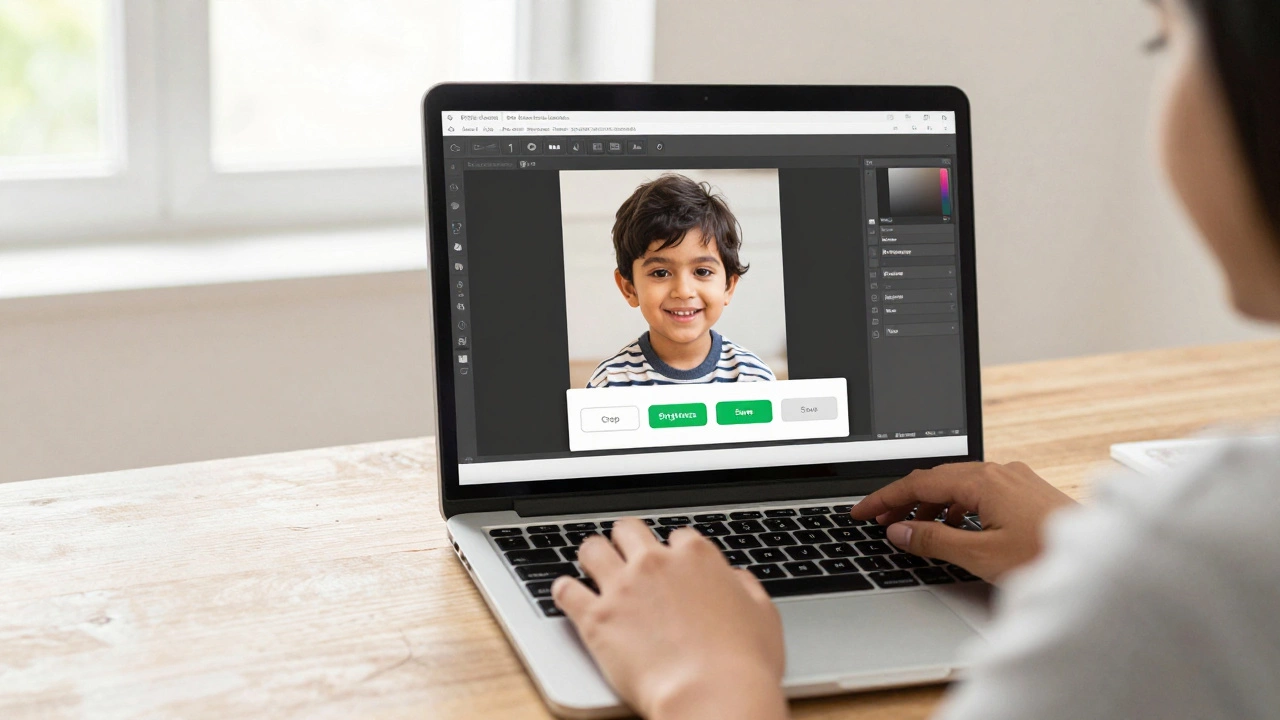
- A mum crops her kid’s school photo to fit a 4x6 print template using Photopea on her Chromebook.
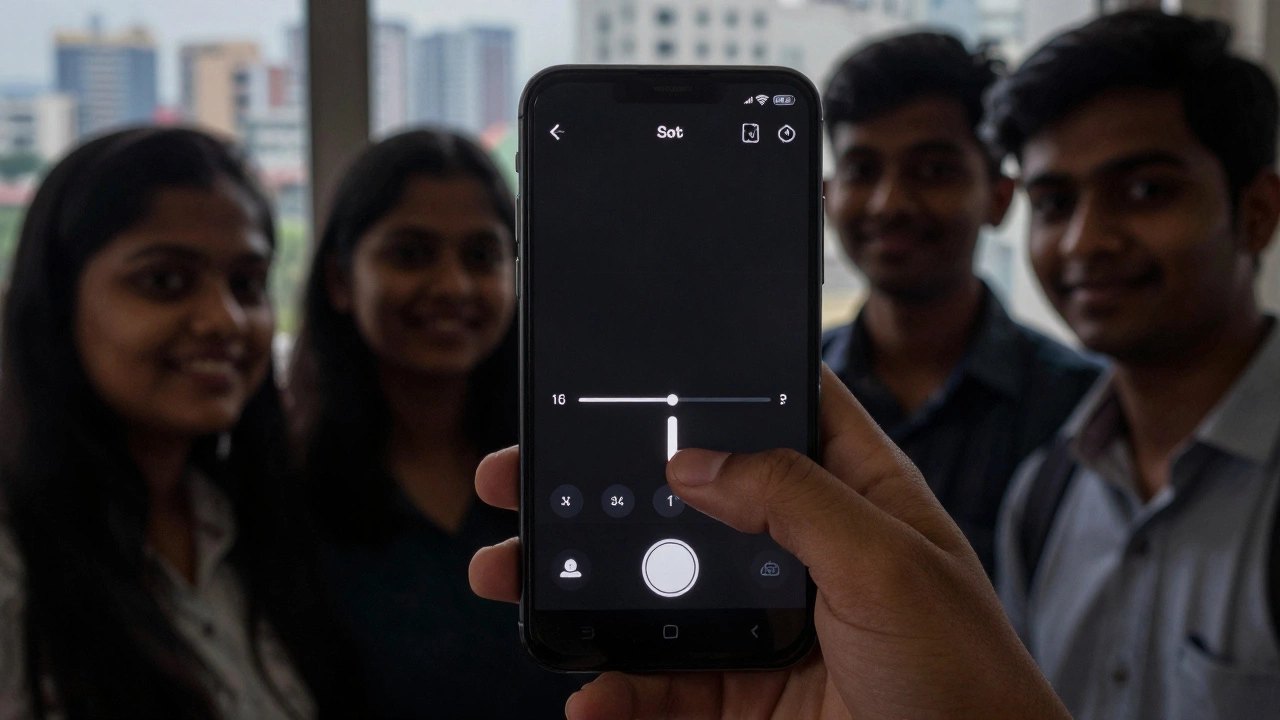
- A college student brightens a dim group selfie in Snapseed before posting it to Instagram.
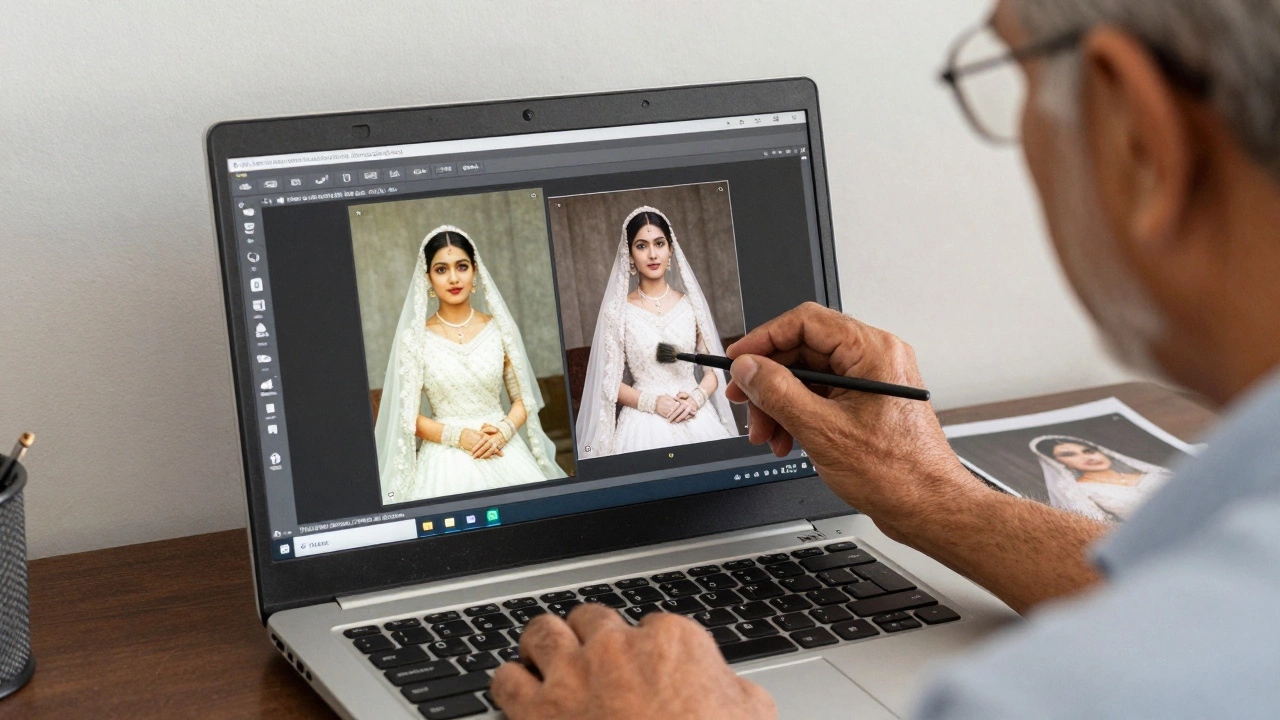
- An elderly man scans his wedding photo and uses Paint.NET to remove scratches and adjust the color tone.
- A small business owner resizes product photos for eBay listings using Photopea on a shared library computer.
None of them used complex tools. None of them paid. All of them got the job done in under five minutes.
How to pick your tool
Here’s a quick guide based on your device and needs:
| Device | Best Tool | Why |
|---|---|---|
| Windows PC | Paint.NET a lightweight, no-frills image editor for Windows that supports layers, brushes, and basic filters without requiring an account | No install needed for basic edits. Works offline. |
| Mac | Photopea a browser-based editor that works on macOS with full support for PSD, PNG, and JPG files without registration | Mac’s built-in Preview app is too basic. Photopea fills the gap. |
| iPhone or iPad | Snapseed a mobile photo editor by Google with intuitive touch controls, no sign-up, and professional-grade adjustments | One-tap fixes. Works in portrait or landscape. |
| Android phone | Snapseed a mobile photo editor by Google with intuitive touch controls, no sign-up, and professional-grade adjustments | Same as iOS. Consistent experience across devices. |
| Chromebook or public computer | Photopea a browser-based editor that works on macOS with full support for PSD, PNG, and JPG files without registration | Runs in browser. No install. Works anywhere with internet. |
What you don’t need
You don’t need AI-powered magic tools that turn your cat into a superhero. You don’t need cloud storage that locks your photos behind a login. You don’t need monthly subscriptions or forced tutorials.
What you need is a tool that lets you open a photo, fix what’s wrong, and close it. That’s it. The simplest free photo editors in 2026 aren’t flashy. They’re quiet, reliable, and honest about what they do.
Final tip: Always save a copy
Before you edit, make sure you’ve saved the original. Even simple tools can accidentally flatten layers or overwrite files. Just rename your original file to "photo_original.jpg" before you start. It’s a two-second habit that saves hours of regret.
Is there a free photo editor that doesn’t require signing up?
Yes. Photopea (web), Snapseed (mobile), and Paint.NET (Windows) don’t require any account, email, or login. You can open, edit, and save without giving up your data. Avoid tools that ask for permission to access your Google or Apple account-those aren’t simple, they’re tracking you.
Can I edit RAW photos for free?
The simplest editors like Snapseed and Photopea don’t support RAW files. If you shoot in RAW, you’ll need a more advanced tool like Darktable (free) or RawTherapee. But if you’re just editing JPEGs from your phone or point-and-shoot camera, those three tools are more than enough. Most people never need RAW editing.
Are these tools safe to use?
Photopea, Snapseed, and Paint.NET are all open-source or backed by major companies (Google, Microsoft). They don’t upload your photos unless you choose to. Avoid random websites with names like "Free Photo Editor Online"-they often contain malware or steal your images. Stick to the three recommended tools.
Do these editors work offline?
Snapseed and Paint.NET work completely offline once installed. Photopea requires an internet connection because it runs in your browser. But since it’s lightweight, it works even on slow connections. If you’re editing on a plane or in a remote area, install Snapseed or Paint.NET ahead of time.
What’s the best option for older computers?
Paint.NET runs smoothly on Windows 7 and up, even with 2GB of RAM. Photopea works on any browser from the last 10 years. Snapseed needs a modern phone, but if you’re using an older laptop or Chromebook, Photopea is your best bet. It’s the most lightweight of all.
Next steps
Try one of the three tools today. Open a photo you’ve been meaning to fix. Crop it. Brighten it. Save it. If it felt easy, you’ve found your editor. If it didn’t, try another. You don’t need to master all of them-just one that works for you.
And if you ever need to crop a passport photo, resize a profile picture, or fix a blurry vacation snap-remember: the best tool isn’t the most powerful. It’s the one you actually use.